Hyper Bridge includes an integrated, privacy-first Bug Report Generator that combines your description of an issue with an automated hardware and permission snapshot.
Submitting a complete bug report helps the development team pinpoint issues on specific Xiaomi device models, HyperOS regional builds, and notification styles without tedious back-and-forth debugging.
Accessing the Bug Report Screen#
You can access the bug reporter in two ways:
- From Settings: Navigate to Settings → Report a Bug (under the Support section).
- From Diagnostics: Tap the Report Error button in the Diagnostics Screen.
1. Filling Out the Report#
To ensure the issue can be reproduced and resolved quickly, the reporter provides structured input fields:
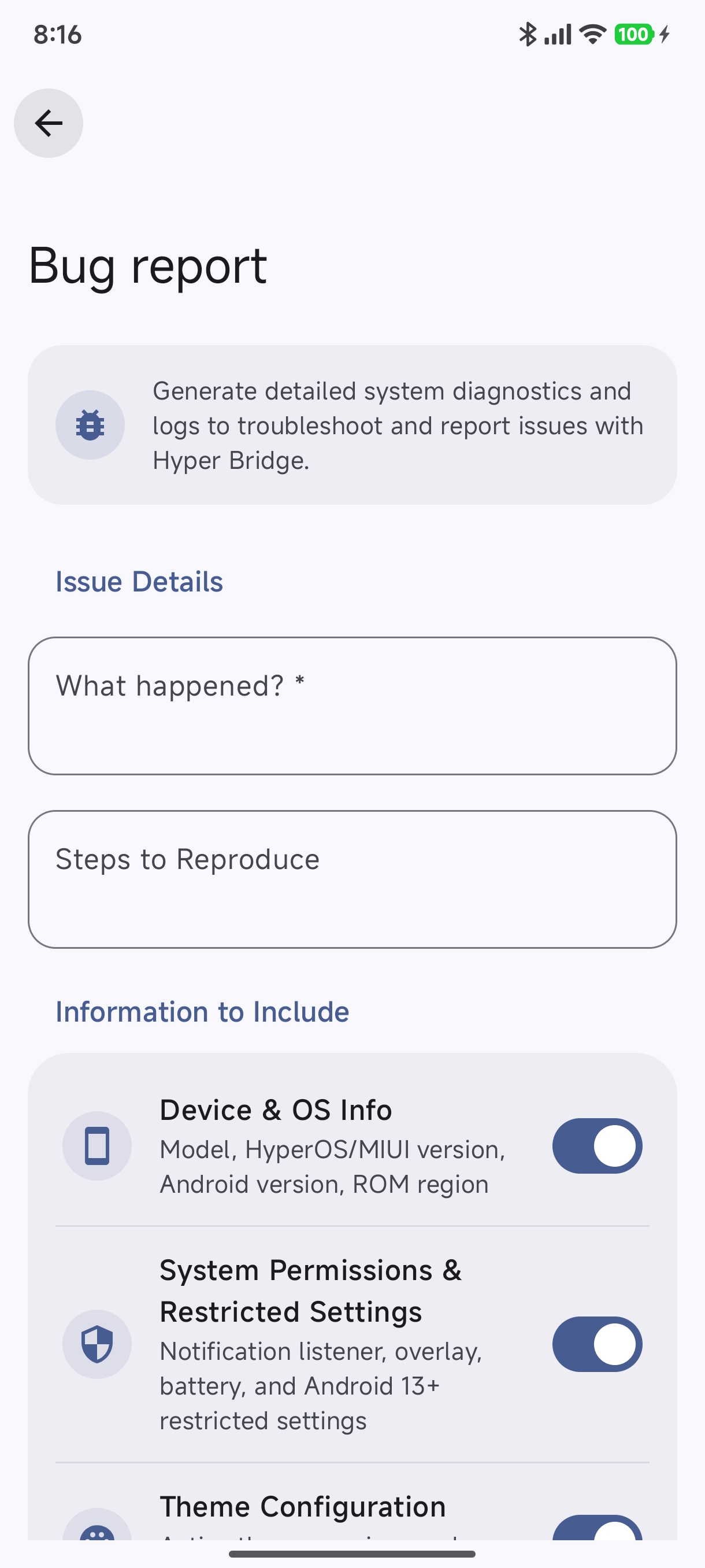
A. Description (Required)#
Provide a clear explanation of what went wrong:
- Describe the unexpected behavior (e.g. “WhatsApp messages do not show custom avatar” or “Island doesn’t dismiss after audio stops”).
- Include what you expected to happen.
B. Steps to Reproduce#
List the sequential steps needed to trigger the problem:
- Open the target application.
- Receive a background notification while the phone is unlocked.
- Observe whether the island expands, stays collapsed, or fails to render.
C. Associate with a Specific App (Optional)#
If the bug occurs exclusively with a particular app (e.g., Spotify, Telegram, Uber, or a banking app):
- Tap Select Target App.
- Pick the application from your installed apps list. The package name and version will be attached to the report.
2. Automated Diagnostic Snapshot#
When you generate a report, BugReportCollector gathers an automated technical environment snapshot. You can preview all collected data directly on the screen before sending:
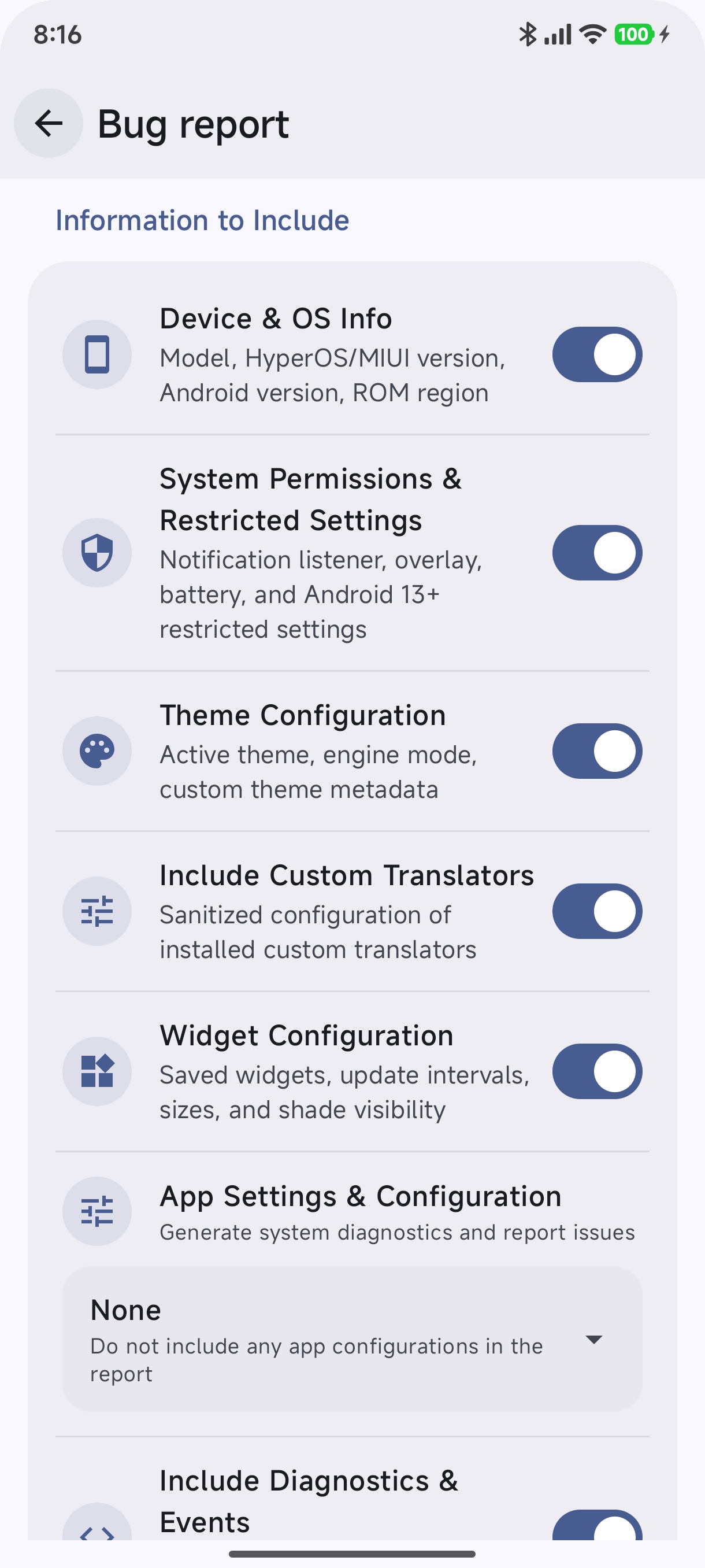
Device & Firmware Environment#
- Device Model & Name: Marketing name (e.g.,
Xiaomi 14 Ultra,POCO F6 Pro) and hardware codename. - Operating System: Android version, API level, and build fingerprint.
- HyperOS Build: Exact HyperOS version string and whether the device is running a Global or China (CN) ROM.
Permission Matrix#
- Notification Listener granted (
true/false). - Post Notifications granted.
- Android 13+ Restricted Settings authorization.
- HyperOS Focus Notifications status.
- Battery Optimization exclusion (“No Restrictions”).
- Autostart permission status.
- Shizuku service status and version (if active).
Application & Customization State#
- Installed Hyper Bridge version and build number.
- Active Theme configuration (
HyperThemeID, author, and highlight color). - Active Custom Translators (names, priorities, target scopes, and condition rules).
- Active Widget Studio micro-widgets.
Sanitized Event Log#
- The last 50 entries from
DiagnosticsStore(timestamps, notification categories, translator matches, and service connection transitions).
3. Privacy & Data Protection#
Hyper Bridge is committed to user privacy:
- Zero Message Body Logging: Notification text bodies, contact numbers, authentication codes, and message previews are never collected.
- No Automatic Telemetry: Reports are never transmitted silently in the background. You must explicitly review and trigger the submission.
- Zero Internet Permissions: Hyper Bridge does not have
android.permission.INTERNET. Sending a report launches an external app (your web browser or email client) via standard Android intents.
4. Submission Options#
Once your report is composed, tap the action button that best suits your workflow:
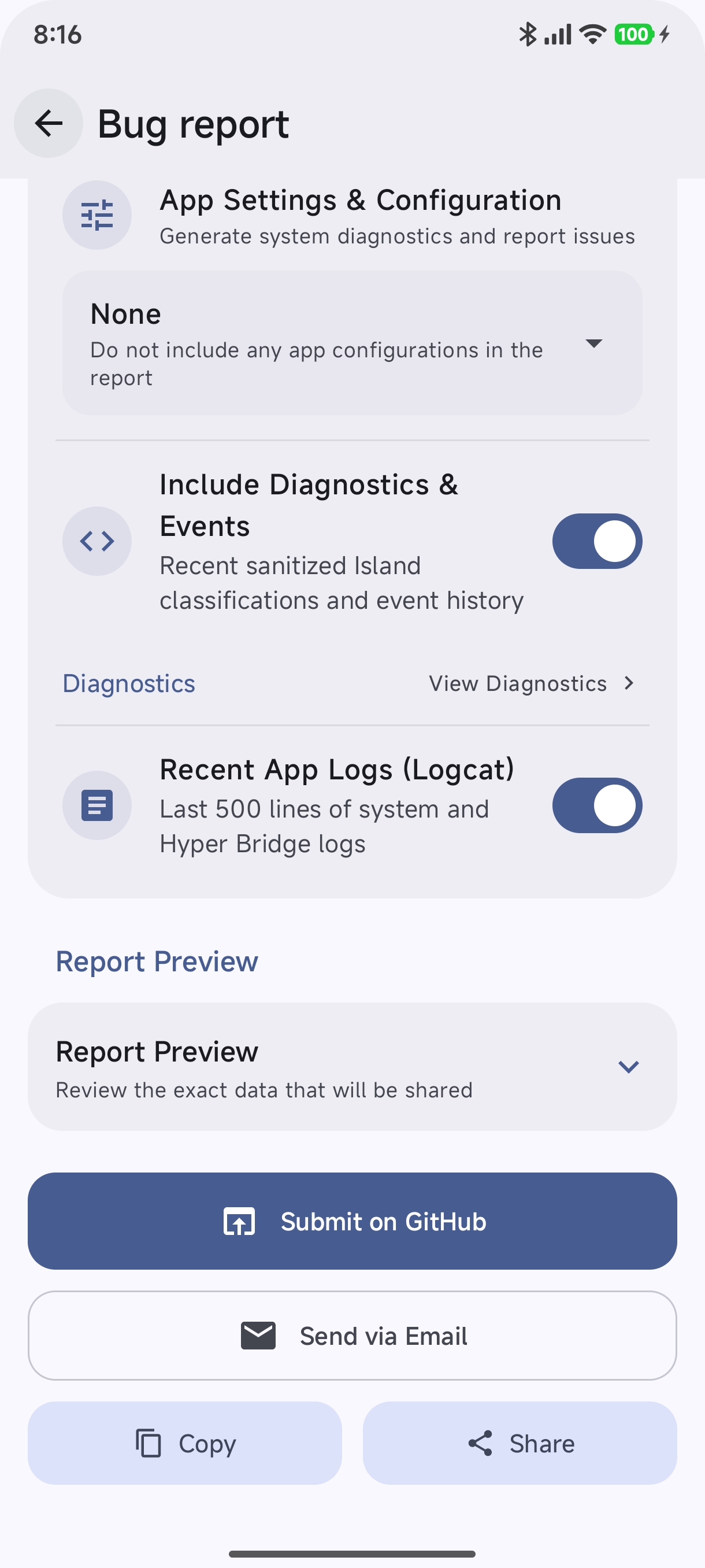
Option 1: Submit via GitHub Issues (Recommended)#
Tap Submit on GitHub:
- Opens the official Hyper Bridge GitHub Issues portal in your browser.
- Automatically populates the issue title, problem description, device specs, and diagnostic log into the structured YAML bug template.
- Allows you to track progress, receive developer responses, and test preview APK fixes.
Option 2: Send via Email#
Tap Send Email:
- Pre-populates an email addressed directly to the maintainer: d4viddf@d4viddf.com.
- Formats your device details and reproduction steps into the message body.
Option 3: Copy to Clipboard#
Tap Copy Report:
- Copies the complete, formatted Markdown report to your clipboard.
- Ideal for sharing in the Telegram community group or Discord developer channel for rapid assistance.
Next Steps#
- Wondering why a permission is marked as missing? Follow the System Setup & Health Guide.
- Learn how to inspect live event codes in the Diagnostics Guide.