In Android, third-party applications are strictly sandboxed from observing other apps’ alerts. To intercept music playback, incoming chat messages, download progress, navigation alerts, and system timers, HyperBridge requires Android’s specialized Notification Listener Access (NotificationListenerService).
Without this permission, HyperBridge cannot detect when notifications are posted or updated, meaning dynamic islands cannot be displayed.
🔒 Privacy & On-Device Security#
Granting notification listener access allows an app to observe incoming notification titles, body text, actions, and media metadata. HyperBridge takes privacy and security very seriously:
- 100% On-Device Processing: Notification data is processed purely in ephemeral RAM and converted on the fly into native HyperOS Super Island views.
- Zero Network Permissions: HyperBridge does not request the Android internet permission (
android.permission.INTERNET). It is technically impossible for the app to send your messages, verification codes, or personal data to any external server. - No Disk Logging: Message contents and notification payloads are never saved to your device storage or persistent databases.
🛠️ Step-by-Step: How to Enable on HyperOS#
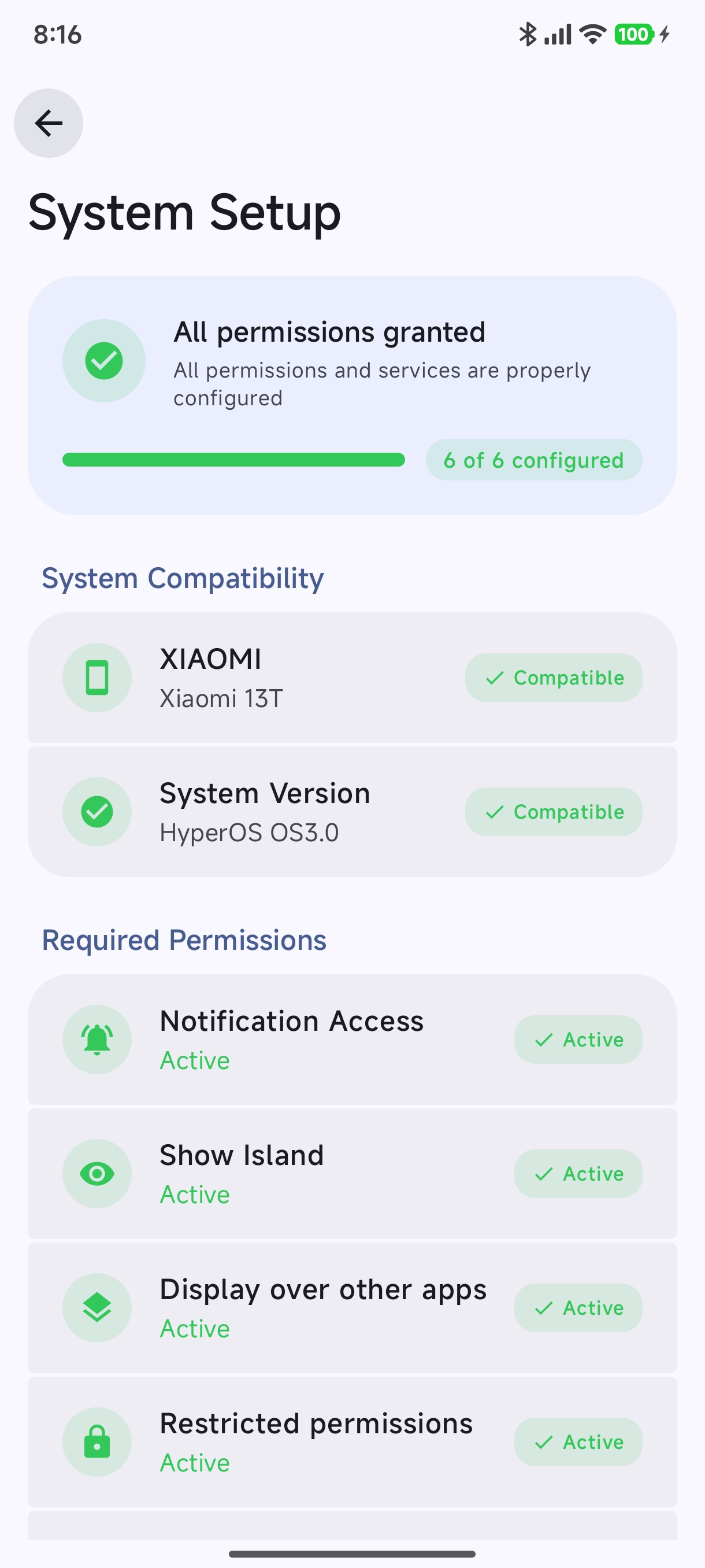
You can grant Notification Listener access during the initial Onboarding Wizard, from the System Health dashboard (Settings → System Health), or manually through Xiaomi HyperOS Settings.
Method 1: Via HyperBridge (Recommended)#
- Open HyperBridge and tap the System Health card on the dashboard or open Settings → System Health.
- Under the permissions list, tap Grant Permission next to Notification Listener Access.
- Android will open the Device & app notifications system screen directly.
- Locate and tap Hyper Bridge in the list.
- Toggle Allow notification access to ON.
- Accept Xiaomi’s 10-Second Security Warning.
Method 2: Manual System Settings Path#
If you need to navigate to the setting manually in HyperOS:
- Open your phone’s Settings.
- Scroll down and tap Apps → Special app access (or search for “Device & app notifications” in the Settings search bar).
- Tap Device & app notifications (or Notification access on older MIUI versions).
- Select Hyper Bridge from the installed apps list.
- Turn on the toggle switch for Allow notification access.
⚠️ Android 13, 14 & 15+ “Restricted Settings” Fix#
If you installed HyperBridge directly from a downloaded APK (e.g. from GitHub Releases) rather than the Google Play Store, Android automatically flags the app as sideloaded and greys out the notification listener toggle with the following alert:
“Restricted setting: For your security, this setting is currently unavailable.”
How to Unlock Restricted Settings:#
- Open your device Settings → Apps → Manage apps.
- Locate and tap Hyper Bridge in the list to open its App info screen.
- In the top-right corner of the App info page, tap the three dots (⋮) menu icon.
- Tap Allow restricted settings.
- Authenticate using your device fingerprint, face unlock, or screen lock PIN/password.
- A toast message will appear saying “Restricted settings allowed for Hyper Bridge”.
- Return to Device & app notifications and toggle Allow notification access to ON.
⏱️ Navigating Xiaomi’s 10-Second Security Warning#
Whenever any app requests Notification Listener access or Accessibility permissions on Xiaomi devices, HyperOS / MIUI presents a full-screen system security dialog titled “Danger”:
“Notification access allows the app to read all notifications, including personal information such as contact names and text messages…”
This is a standard Xiaomi operating system protection mechanism designed to ensure users deliberately choose to grant elevated notification access.
How to complete the prompt:#
- Wait for the 10-second countdown timer at the bottom of the dialog to reach zero.
- Check the box labeled “I am aware of the possible risks, and assume all possible consequences voluntarily.”
- Tap OK to confirm.
✅ Verifying Listener Status#
Once granted, return to HyperBridge:
- Check the System Health dashboard banner: it should now display a green badge (“System Health: Good”).
- Look at the listener status in Diagnostics (Settings → Diagnostics): the
NotificationListenerServicewatchdog should reportCONNECTEDandACTIVE.
If the listener service ever drops after deep sleep or a system reboot, ensure you have also configured Autostart and Battery Saver.