After completing the initial setup, you can control precisely which applications are bridged into dynamic islands. The Active Apps management screen provides fine-grained controls, category filters, and automatic rules for new installations.
1. What’s New & Release Highlights#
When Hyper Bridge updates or opens after setup, the What’s New dialog highlights newly added features, system updates, and architecture improvements.
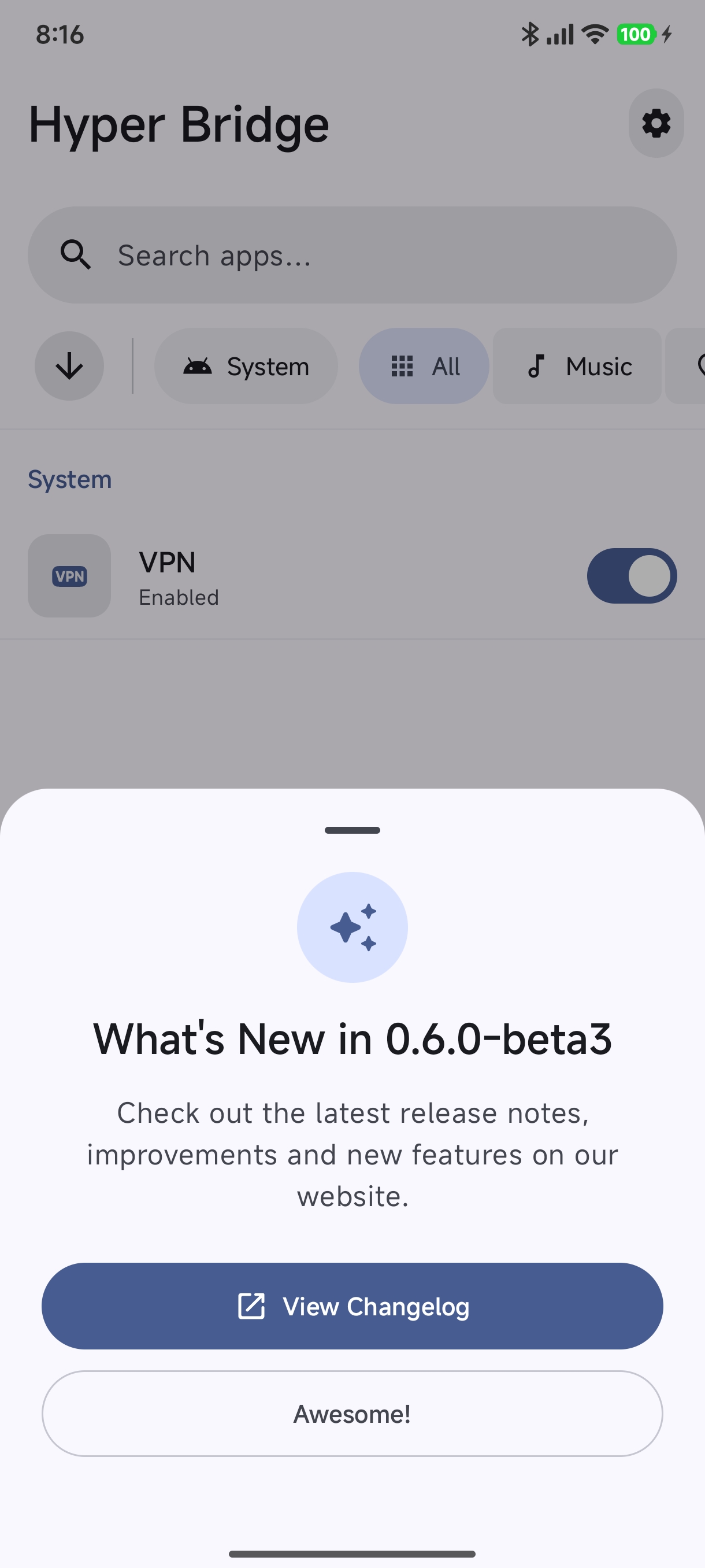
- Tap View Changelog to read full release notes and new translator updates online.
- Tap Awesome! to enter the Active Apps dashboard.
2. Searching and Filtering Applications#
Hyper Bridge organizes your apps and system services with responsive filter chips and real-time search.
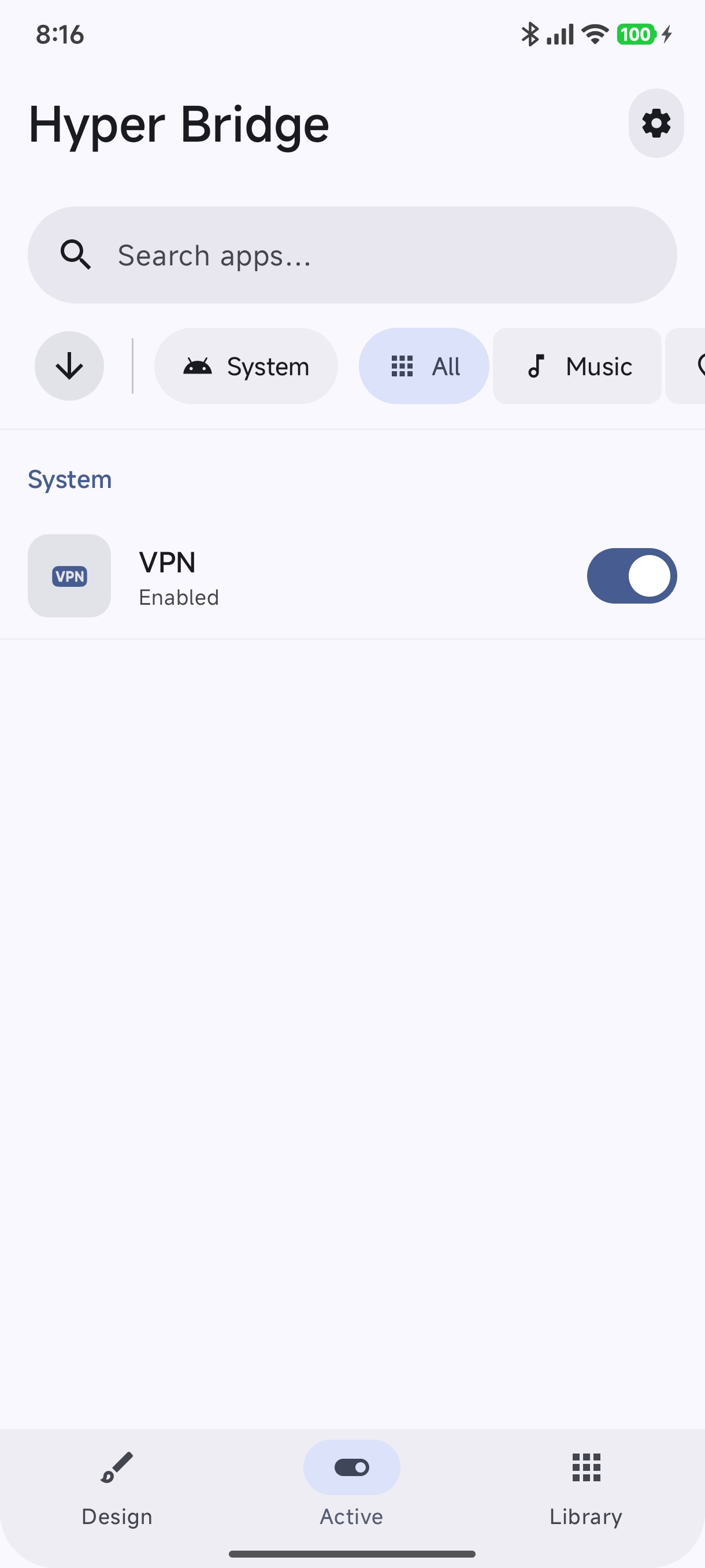
- Instant Search: Type the name or package ID of any installed app in the top search bar.
- Category Chips:
- System: Built-in system services such as VPN, Screen Recording, and System Update.
- All: Displays every installed application on your device.
- Music: Filters media players (Spotify, YouTube Music, Tidal, etc.).
- Chats / General: Filters instant messengers and communication tools.
- Quick Sort: Tap the arrow button next to the search bar to toggle ascending or descending sorting.
3. App Toggles and Configuration#
Each application has an independent toggle switch and an individual settings shortcut.
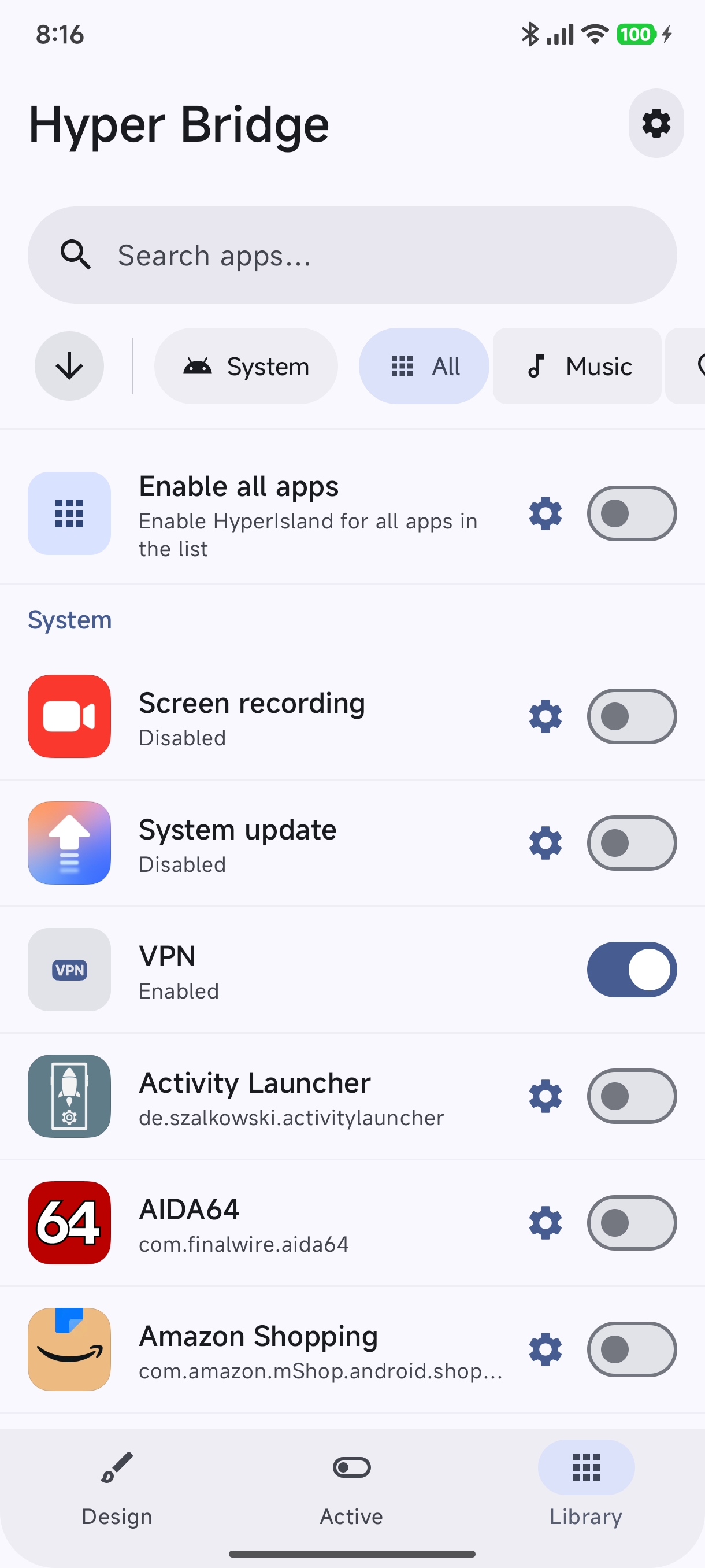
- Enable / Disable Toggle: Switch the toggle on the right side of any app or system service to allow or block dynamic island popups for that specific app.
- Gear Icon (Settings): Tap the gear icon next to any app or system service to open its specialized configuration (such as custom side icons, countdown timers, or custom translators).
- Subtitles: Displays current status (
Enabled/Disabled) or the Android package name.
4. Enabling All Apps & Auto-Adding New Apps#
If you want every installed app and all future apps to immediately display dynamic islands without manual toggling:
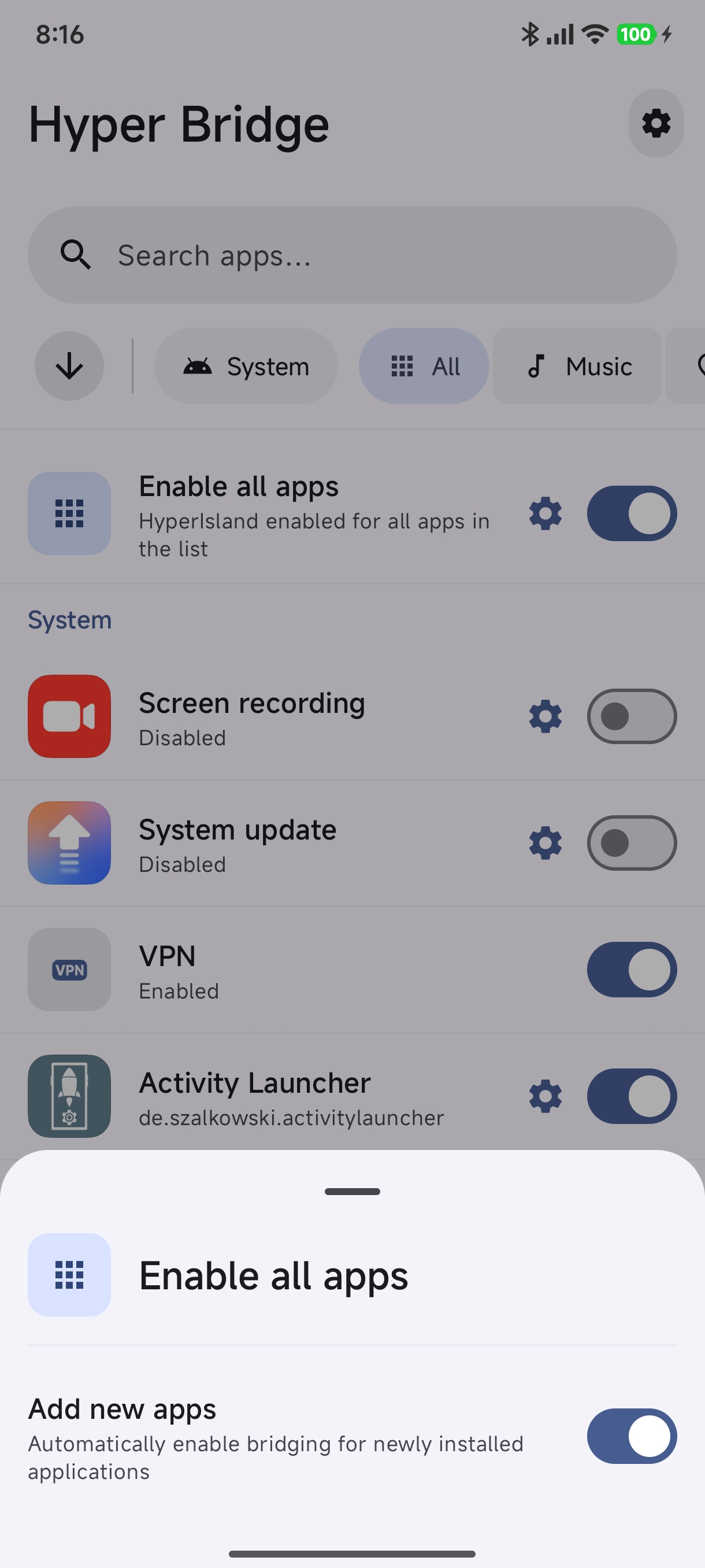
- Tap the Enable all apps card at the top of the list.
- Toggle the main switch to enable Hyper Island for all apps in the current list simultaneously.
- Tap the Settings icon on the “Enable all apps” item to open the bottom sheet modal:
- Add new apps automatically: When toggled on, whenever you install a new app from Google Play or an APK, Hyper Bridge will automatically enable dynamic island bridging for it without requiring you to return to settings.
Next Steps#
Now that your apps are enabled, configure specialized system island indicators:
- Native System Options & Apps: Customize Screen Recording, System Update, and VPN islands.
- Design Hub & Customization: Personalize colors, shapes, and templates.