The Settings menu in Hyper Bridge provides complete command over engine behaviors, queuing limits, privacy exclusions, and diagnostic tools. Tap the gear icon in the top right corner of the app to access settings.
1. Global Settings#
Global Settings defines core notification lifecycle behavior, engine selection, and system integrations.
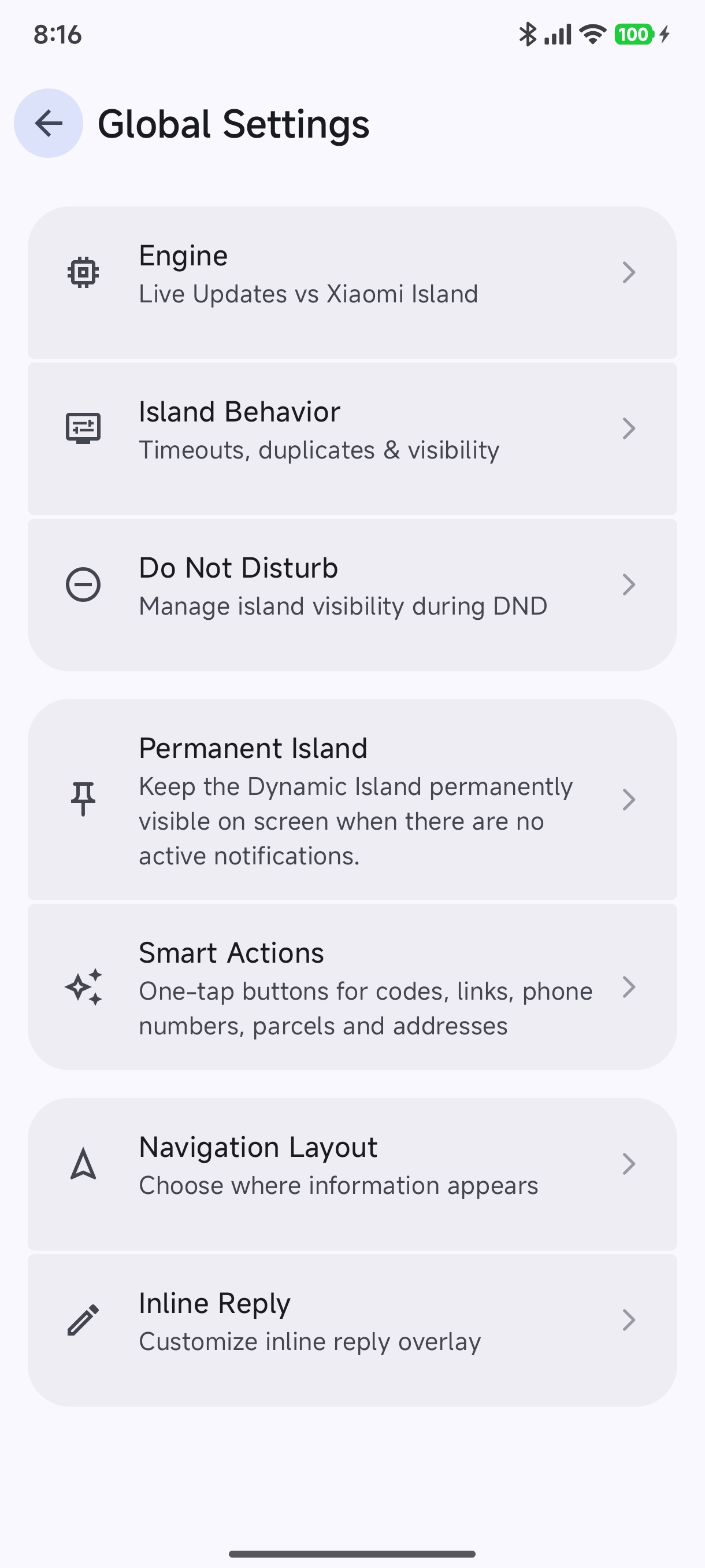
Engine Mode#
Choose between rendering pipelines:
- Xiaomi Featured Design: Modern rich cards and status pills for Global and EEA ROMs.
- Live Update Design: Native notification channels and live cards for CN ROMs or custom setups.
Island Behavior#
Fine-tune how notifications appear, minimize, and dismiss: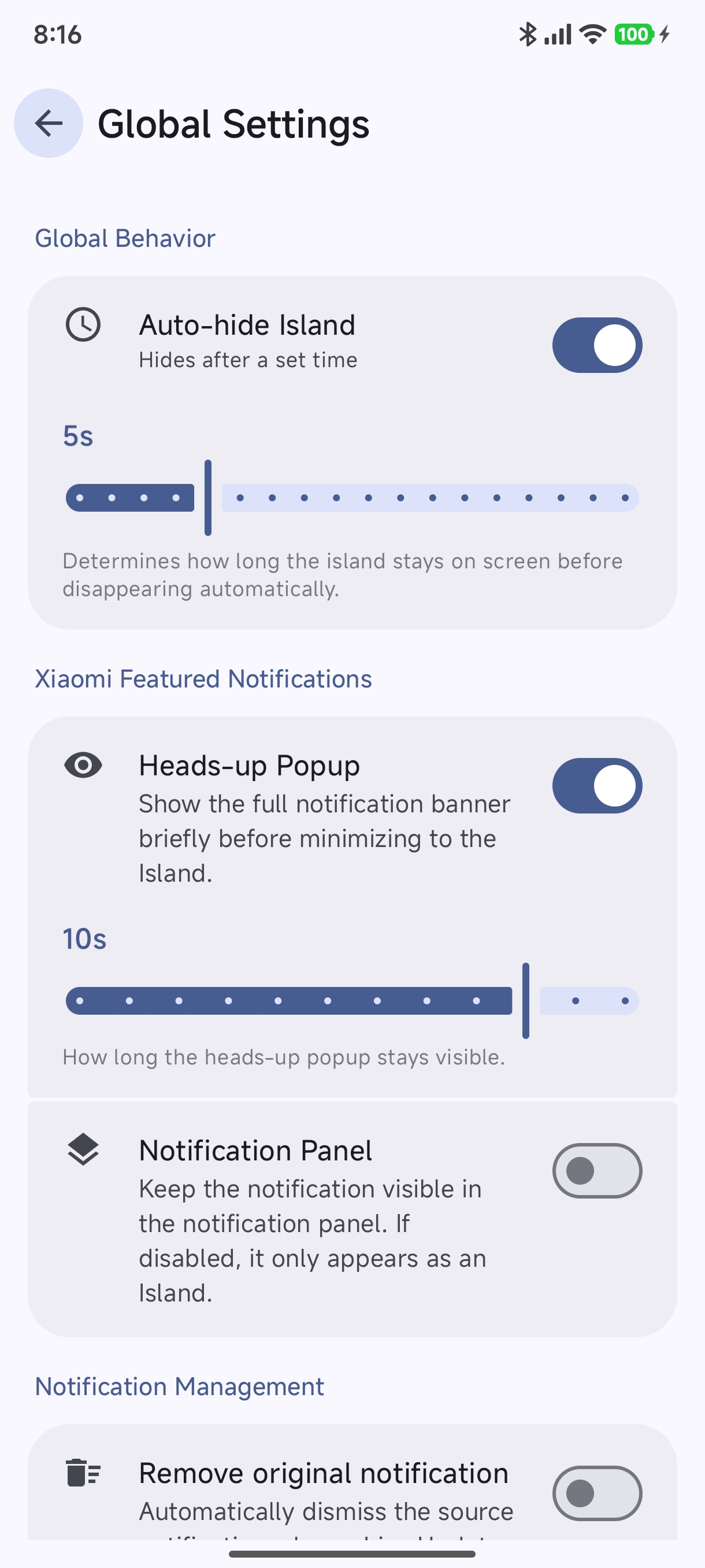
- Auto-hide Island: Define how many seconds (e.g.
5sto60s) an island floats before collapsing. - Heads-up Popup: Briefly display full heads-up notification banners before minimizing into the island pill.
- Notification Panel Visibility: Choose whether notifications remain in your pull-down shade while active as an island.
- Remove original notification: Dismiss the Android notification when a Live Update is active.
- Dismiss with original: Dismiss the island when you clear the notification from your shade.
Do Not Disturb (DND)#
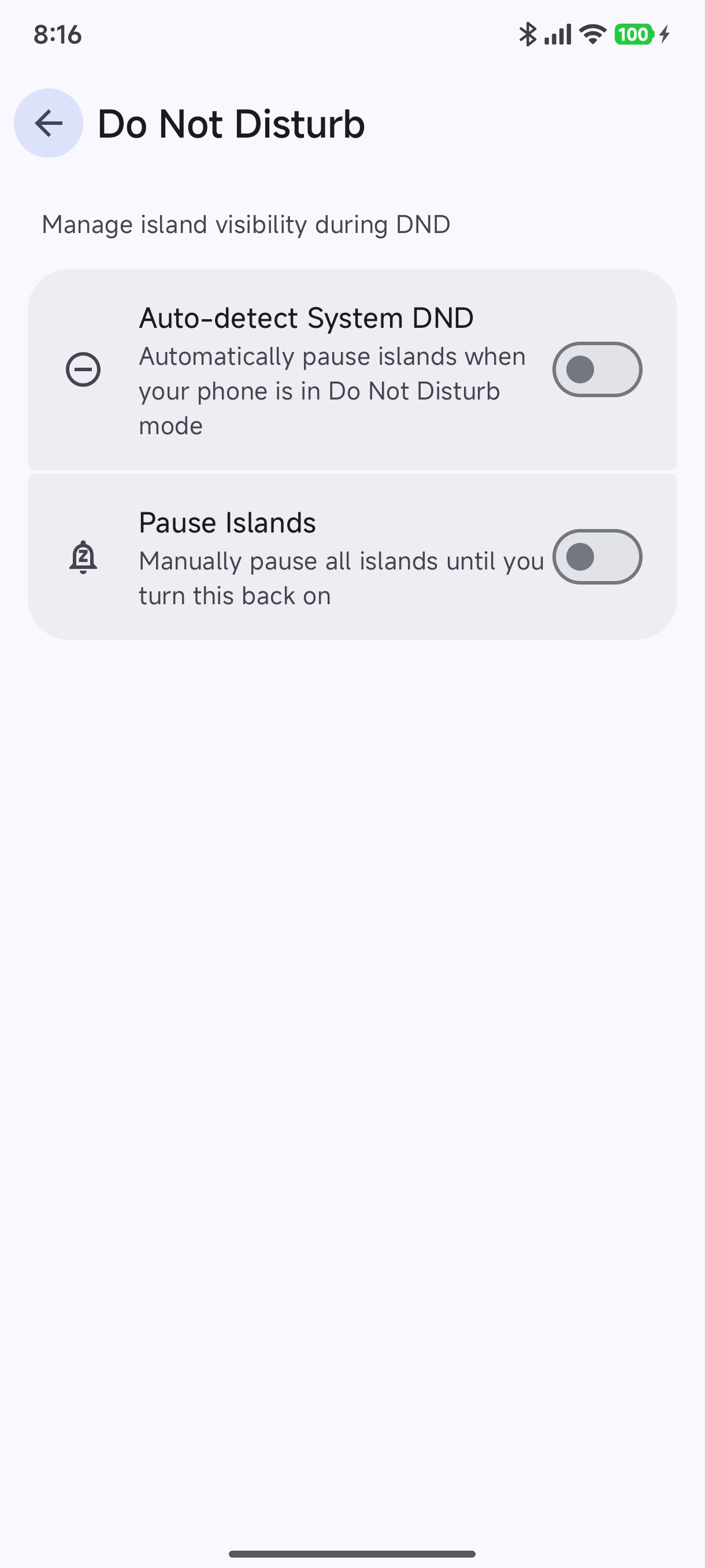
- Auto-detect System DND: Automatically silences island popups while your device is in Do Not Disturb mode.
- Pause Islands: Instant manual pause switch to silence all island popups without altering phone system settings.
Navigation Layout#
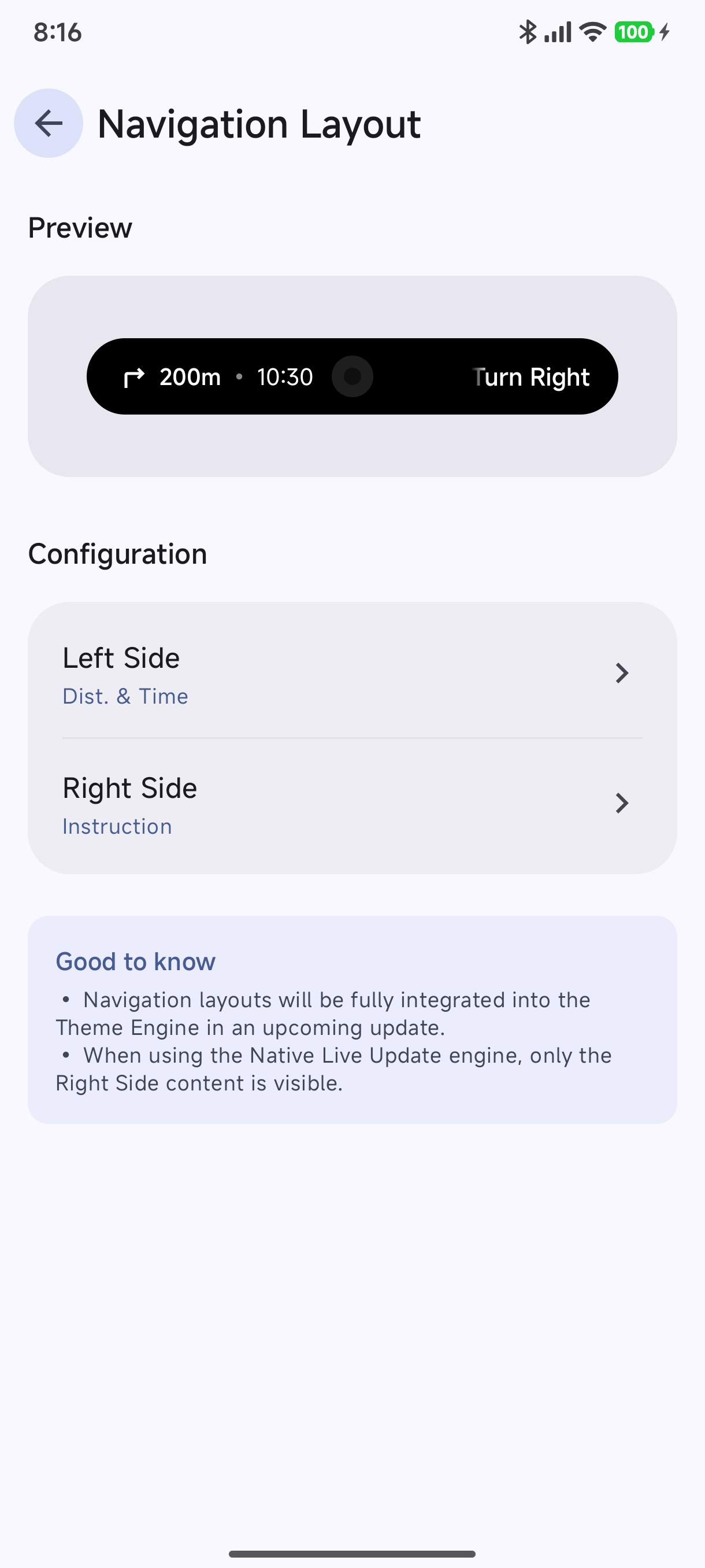
Customize what is shown while navigation is active:
- Left Side: Choose between Instruction, Distance, Arrival Time, or Distance & Time.
- Right Side: Choose between Instruction, Distance, Arrival Time, Distance & Time, or Empty.
2. Floating Notification Setup (Anti-Duplicate Banners)#
In HyperOS, apps may produce both an Android system floating banner (heads-up) and a Hyper Bridge dynamic island.
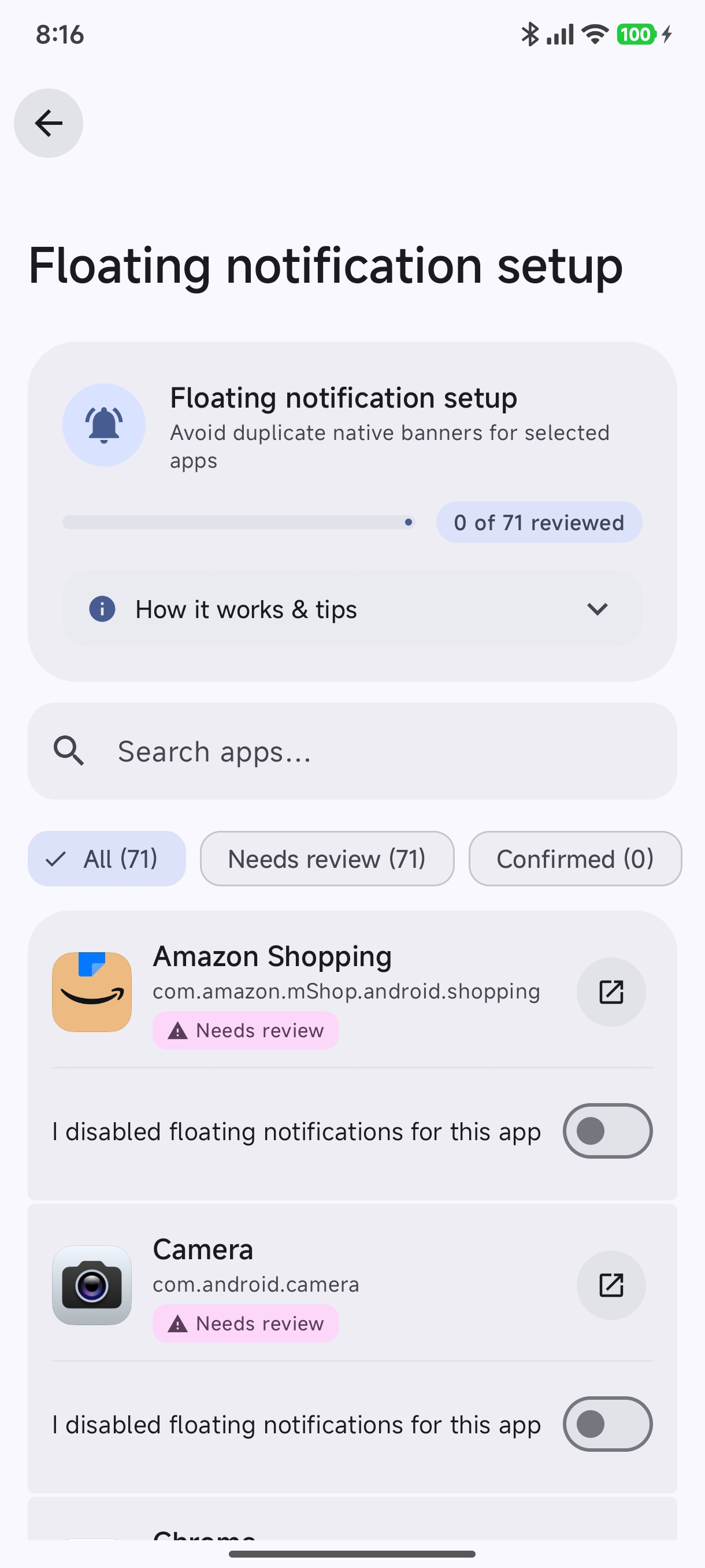
- Why it matters: Disabling native floating banners in system settings lets Hyper Bridge display its clean dynamic island without an underlying native popup clashing behind it.
- Assisted Review: Hyper Bridge lists every bridged app, lets you jump directly to its system notification setting via the external link icon, and mark it as confirmed.
3. Limit Strategy (Multi-Island Queue)#
What happens when more than 9 applications or notifications are active at the same time?
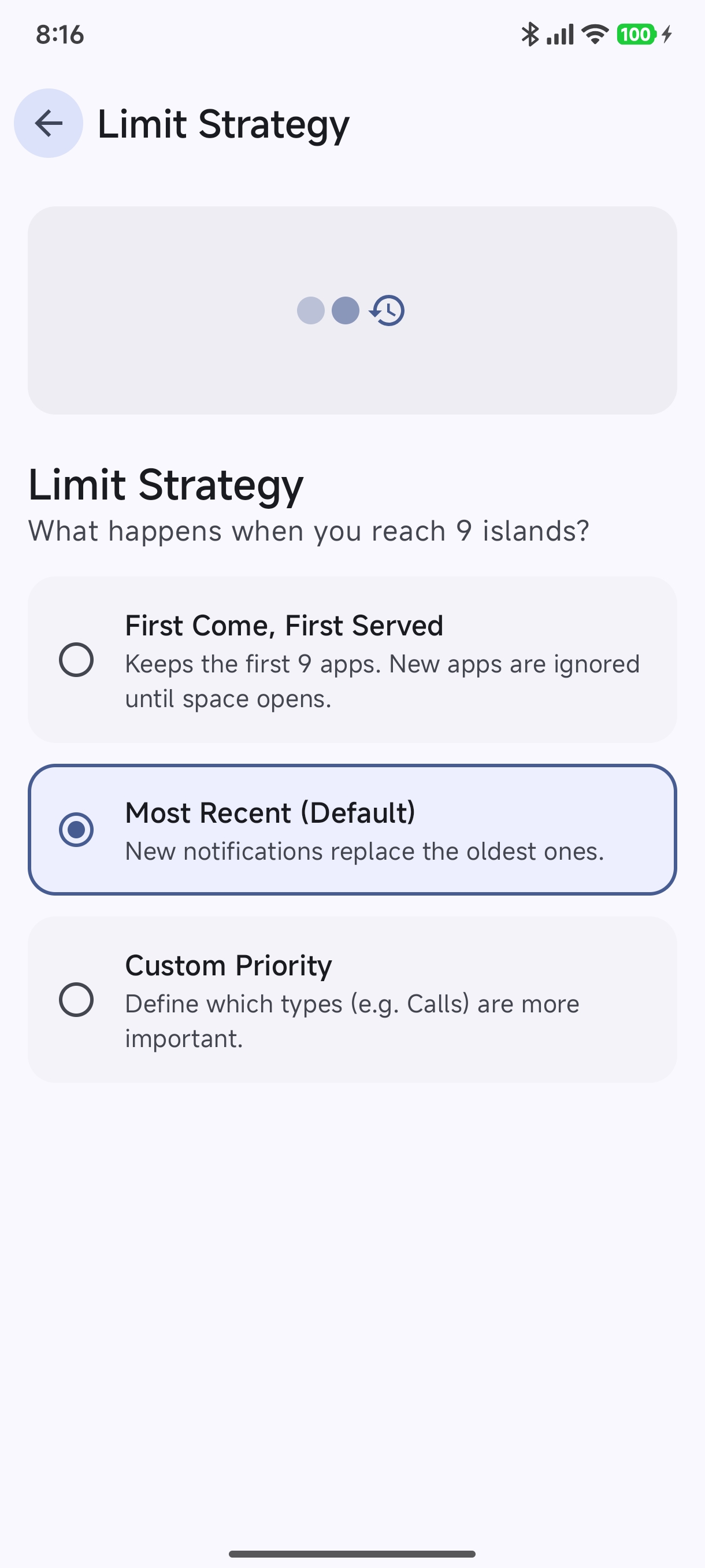
- Most Recent (Default): Newer notifications replace the oldest active islands once the limit is reached.
- First Come, First Served: Retains the first 9 apps; incoming apps wait in queue until active ones dismiss.
- Custom Priority: High-value categories (phone calls, live timers, GPS directions) always take precedence over chat messages.
4. Blocked Terms & Spoiler Protection#
Filter out unwanted notifications or protect yourself from TV show spoilers and sports scores.
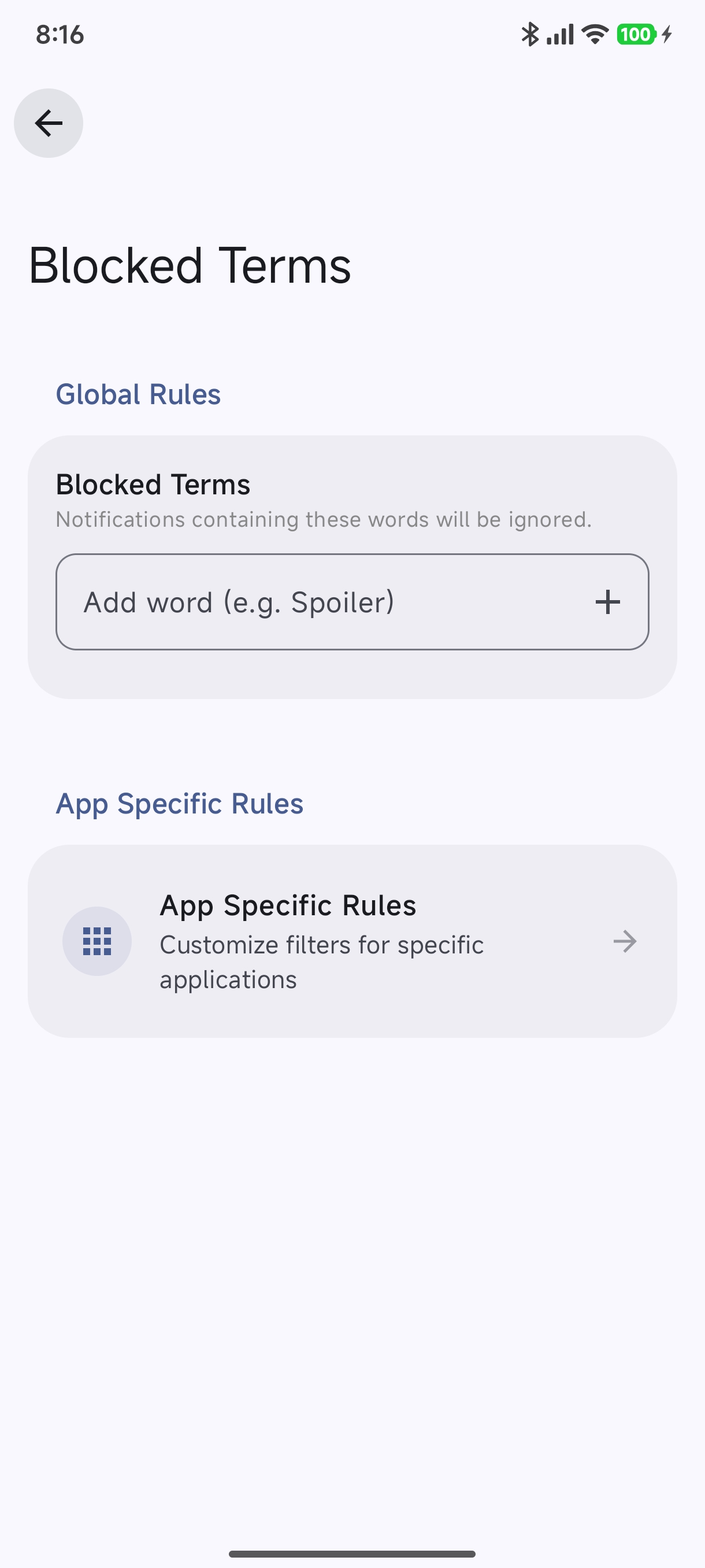
- Global Rules: Add keywords (e.g.,
Spoiler,Score). Any notification containing these words will never trigger an island. - App-Specific Rules: Set up keyword blocklists limited strictly to selected apps without affecting other apps.
5. Backup & Restore#
Protect your personalized themes, custom translators, and notification settings:
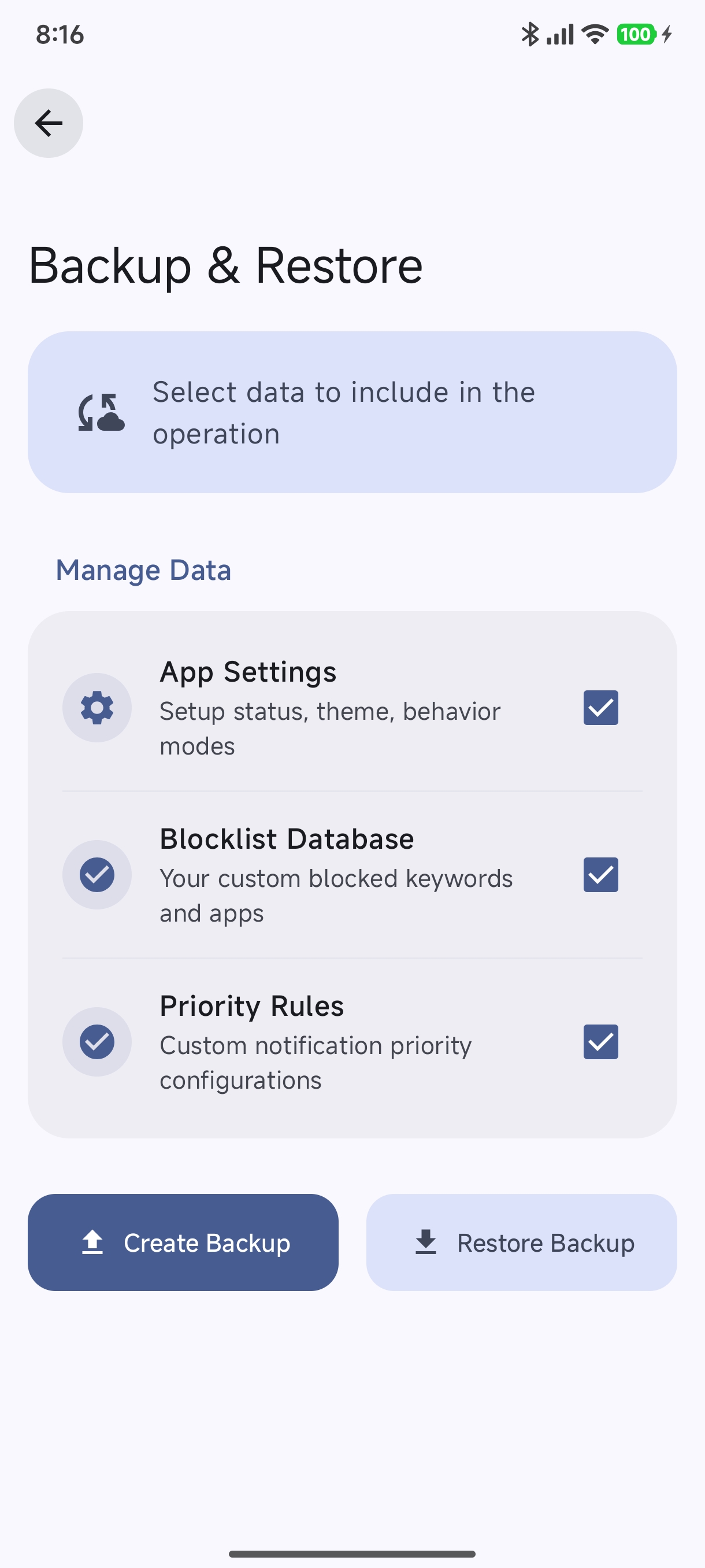
- App Settings: Setup status, theme preferences, and behavior modes.
- Blocklist Database: Your custom blocked keywords and app rules.
- Priority Rules: Custom notification category priority hierarchies.
- One-Tap Export/Import: Tap Create Backup to export an offline
.jsonsnapshot or Restore Backup to migrate to a new device.
6. Guides, Diagnostics & Bug Reporting#
Hyper Bridge includes built-in troubleshooting utilities accessible directly from Settings:
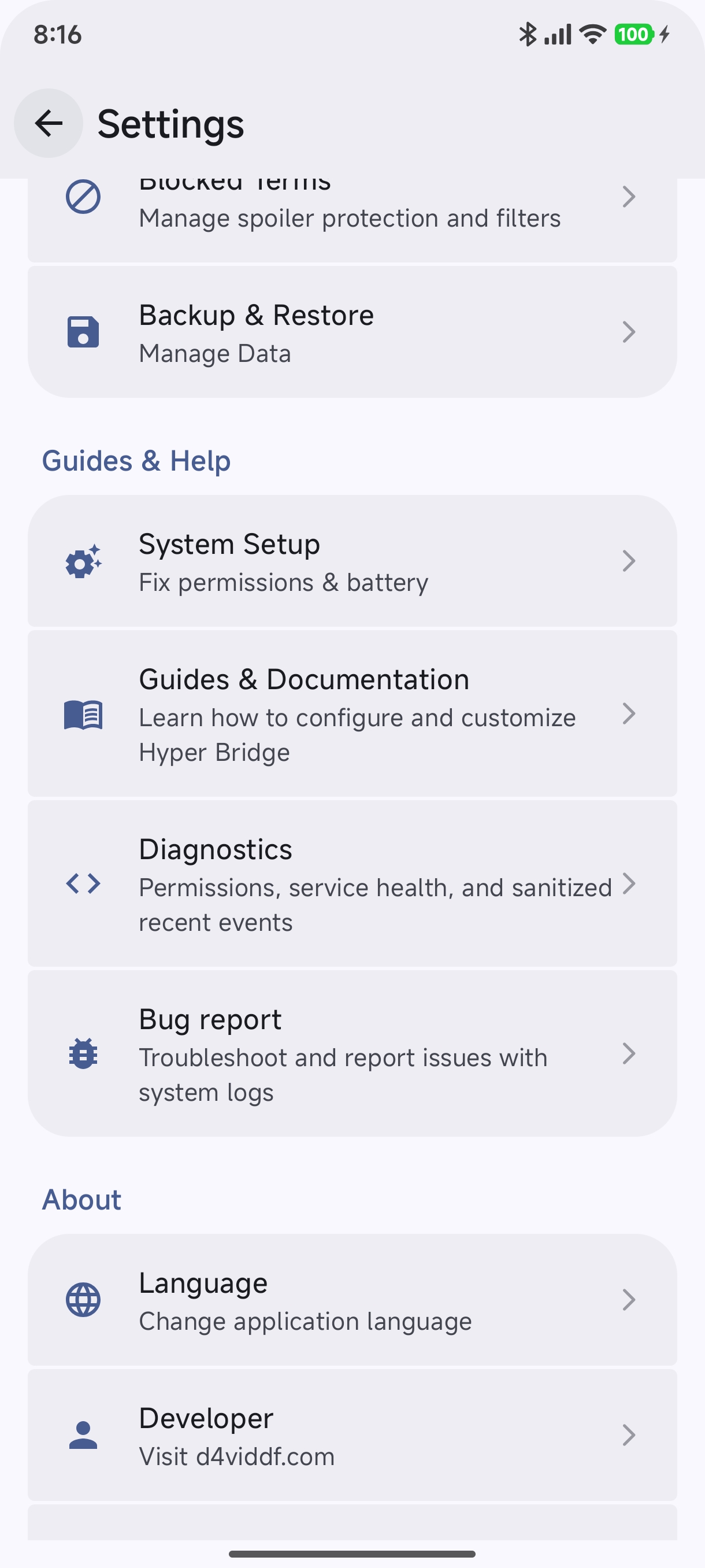
- System Setup Guide: Verify all 6 system permissions and autostart optimizations.
- Diagnostics Dashboard: Live status of notification listeners and event logs.
- Bug Reporting Guide: Export sanitized diagnostic logs to GitHub or email.
7. About & Community Credits#
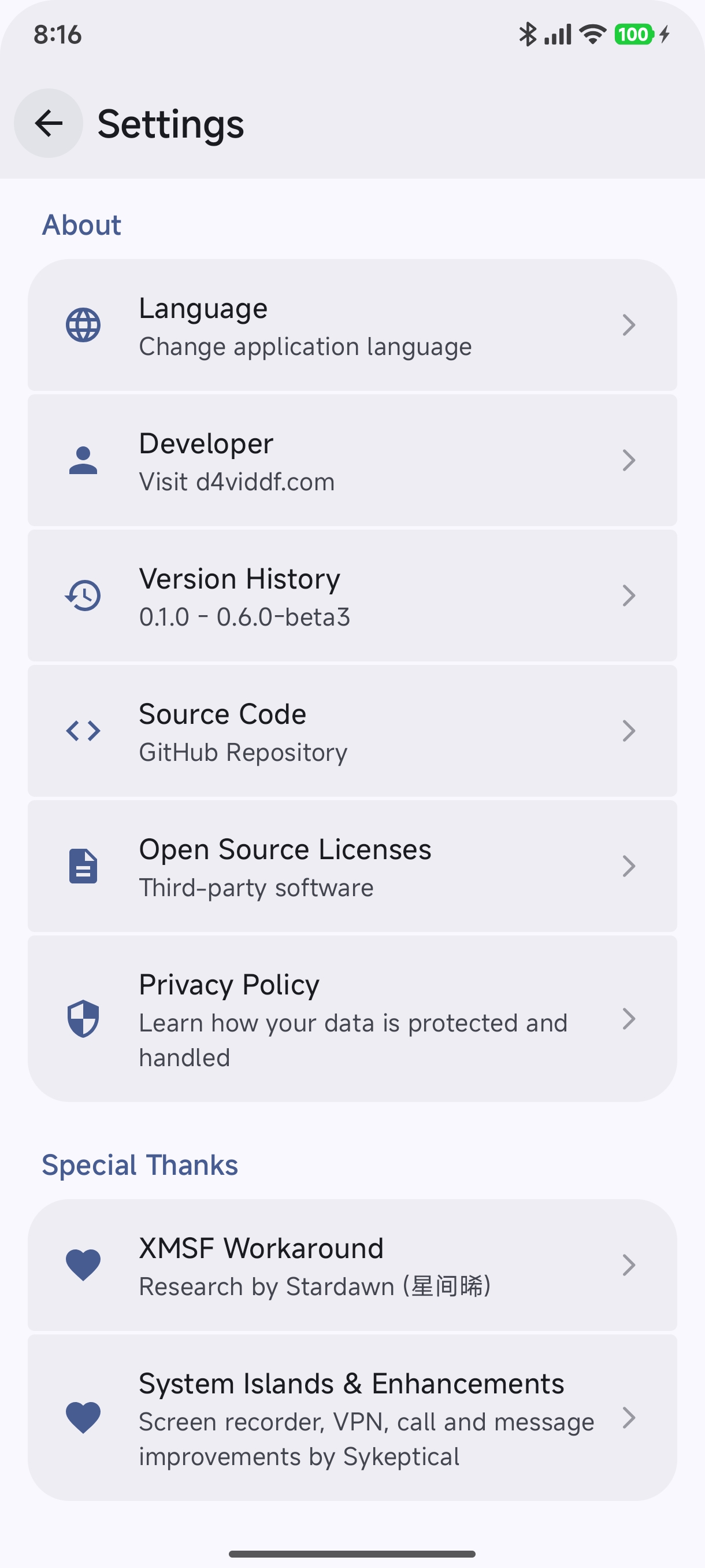
The About section details the active Hyper Bridge version, open source licenses, and gives special thanks to community researchers and contributors who make Hyper Bridge possible!
8. Per-App Configuration#
In addition to global preferences, Hyper Bridge gives you complete per-application control. You can access the dedicated App Configuration screen by tapping the gear / settings icon on any individual app card in the Library or Active tabs on the home screen.
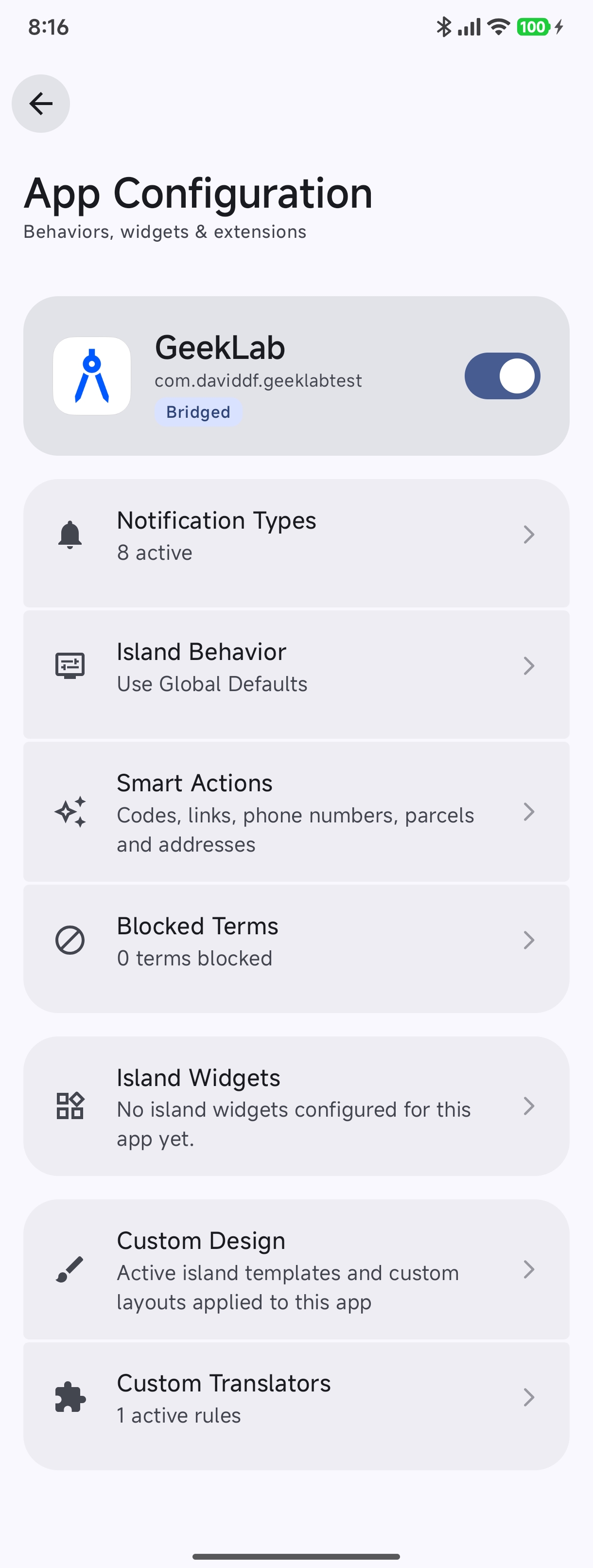
From this screen, you can customize each aspect of how Hyper Bridge interacts with that specific application:
Notification Types#
Control which specific types of notifications trigger a dynamic island for this app.
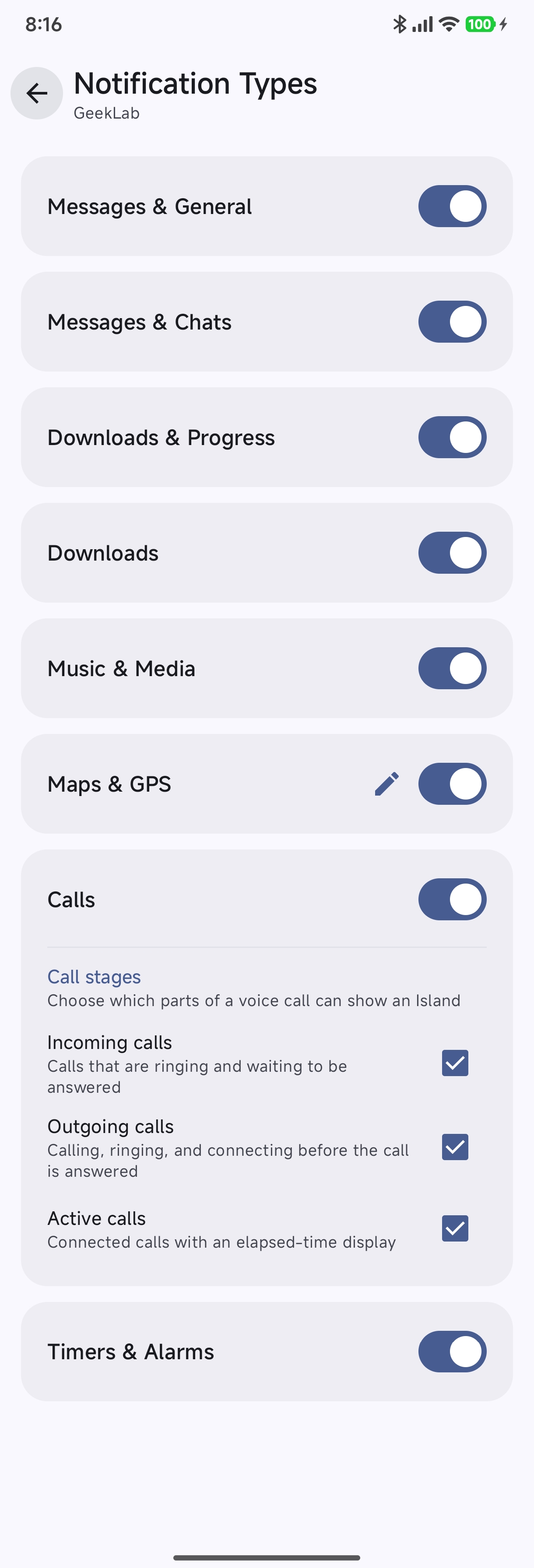
- Messages & General: Messages and chat notifications.
- Downloads & Progress: Active downloads and task progress bars.
- Music & Media: Audio playback controls and album info.
- Maps & GPS: Real-time navigation prompts.
- Calls: Incoming, Outgoing, and Active voice/video call indicators.
- Timers & Alarms: Active countdowns and alarm alerts.
Island Behavior Overrides#
Override global timing and popup behavior specifically for this application.
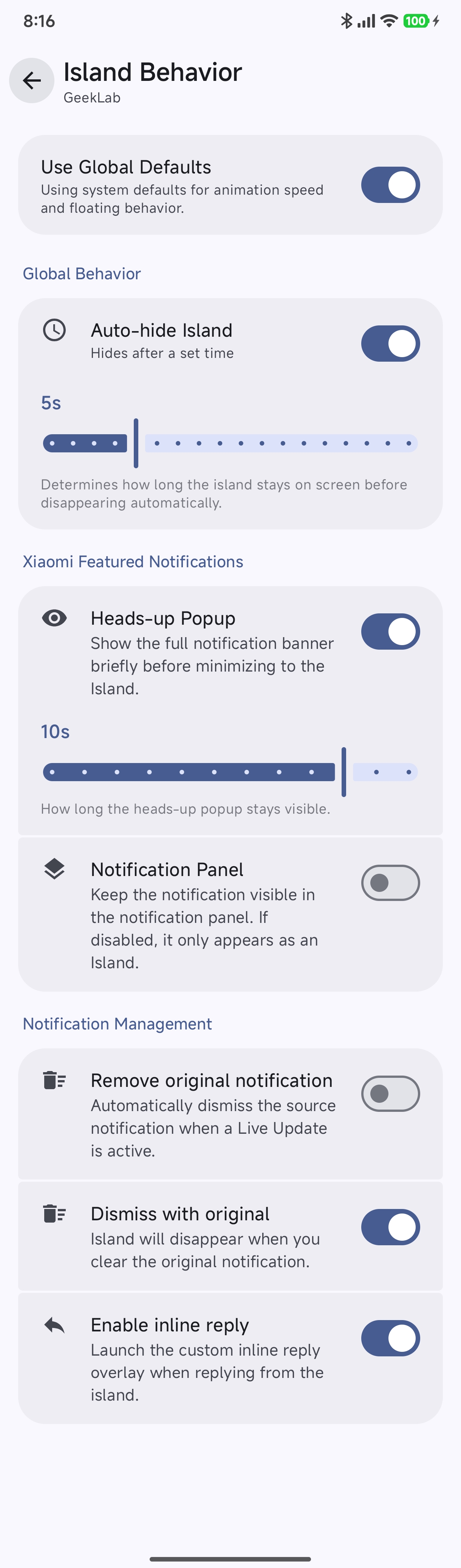
- Use Global Defaults: Keep toggled on to inherit from Global Settings, or switch off to define custom timings.
- Auto-hide Island: Set a custom display duration before collapsing into the status bar pill.
- Heads-up Popup: Control whether this app displays an initial full floating popup before settling into an island.
- Notification Panel: Choose whether notifications remain in your pull-down shade while the island is visible.
- Remove original notification / Dismiss with original: Coordinate lifecycle synchronization between the Android status bar and the island.
- Enable inline reply: Allow direct text input from the expanded island card.
Smart Actions#
Customize contextual quick actions for notifications originating from this application.
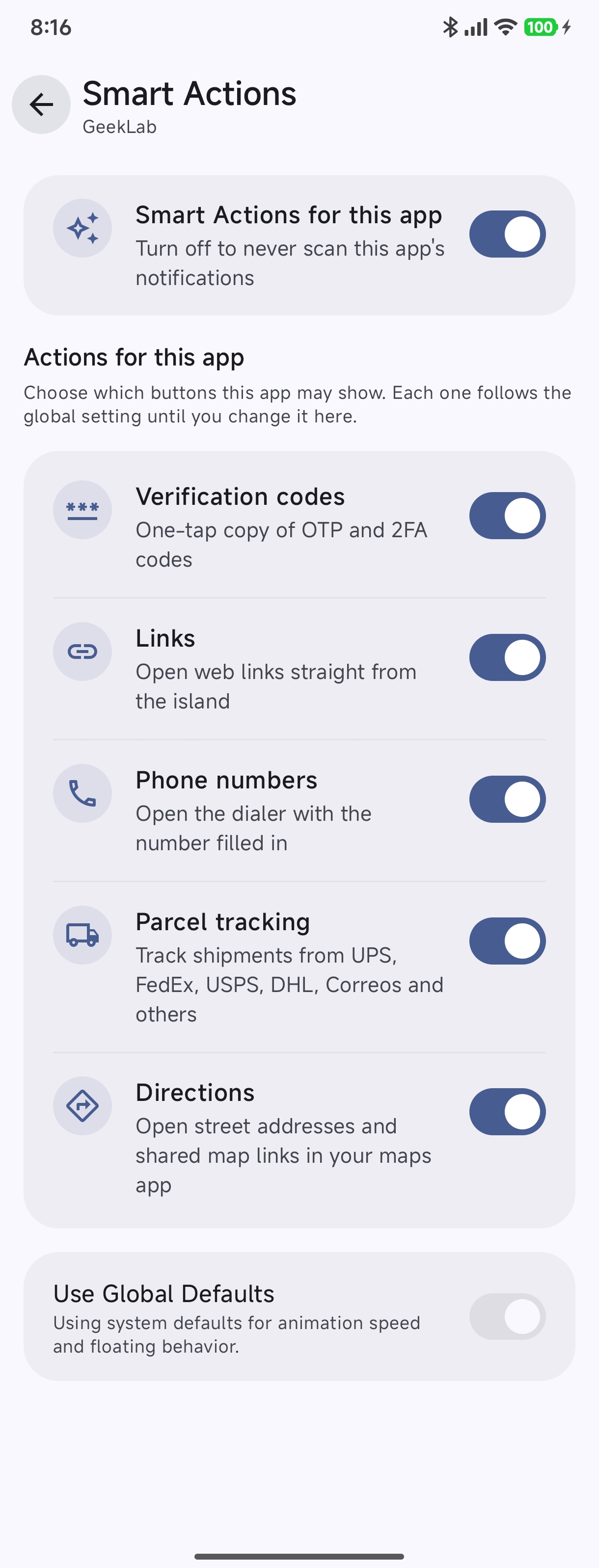
- Turn off sensitive detectors (such as Verification codes / OTP) for banking or authenticator apps while keeping them active for SMS.
- Toggle quick actions for detected links, phone numbers, parcel numbers, and directions.
- See the full Smart Actions Guide for details.
Blocked Terms (App-Specific)#
Filter out notifications from this app that match specific keywords or phrases.
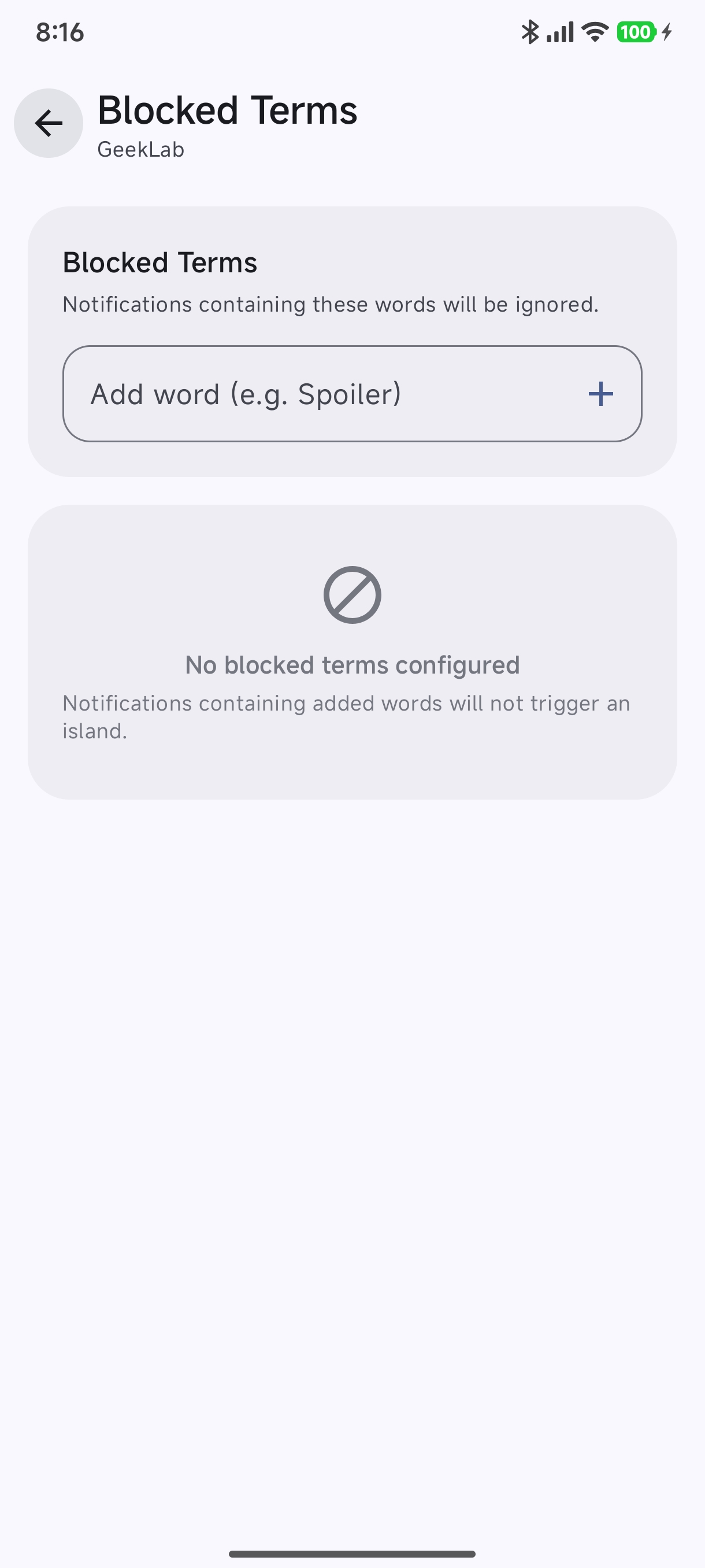
- Type words or phrases (e.g.
Spoiler,Promotion,Meeting ended) into the input field and tap Add word. - Any notification from this app containing any of these terms will be ignored and will not trigger an island.
Island Widgets#
Display native Android home screen widgets directly inside the expanded island.
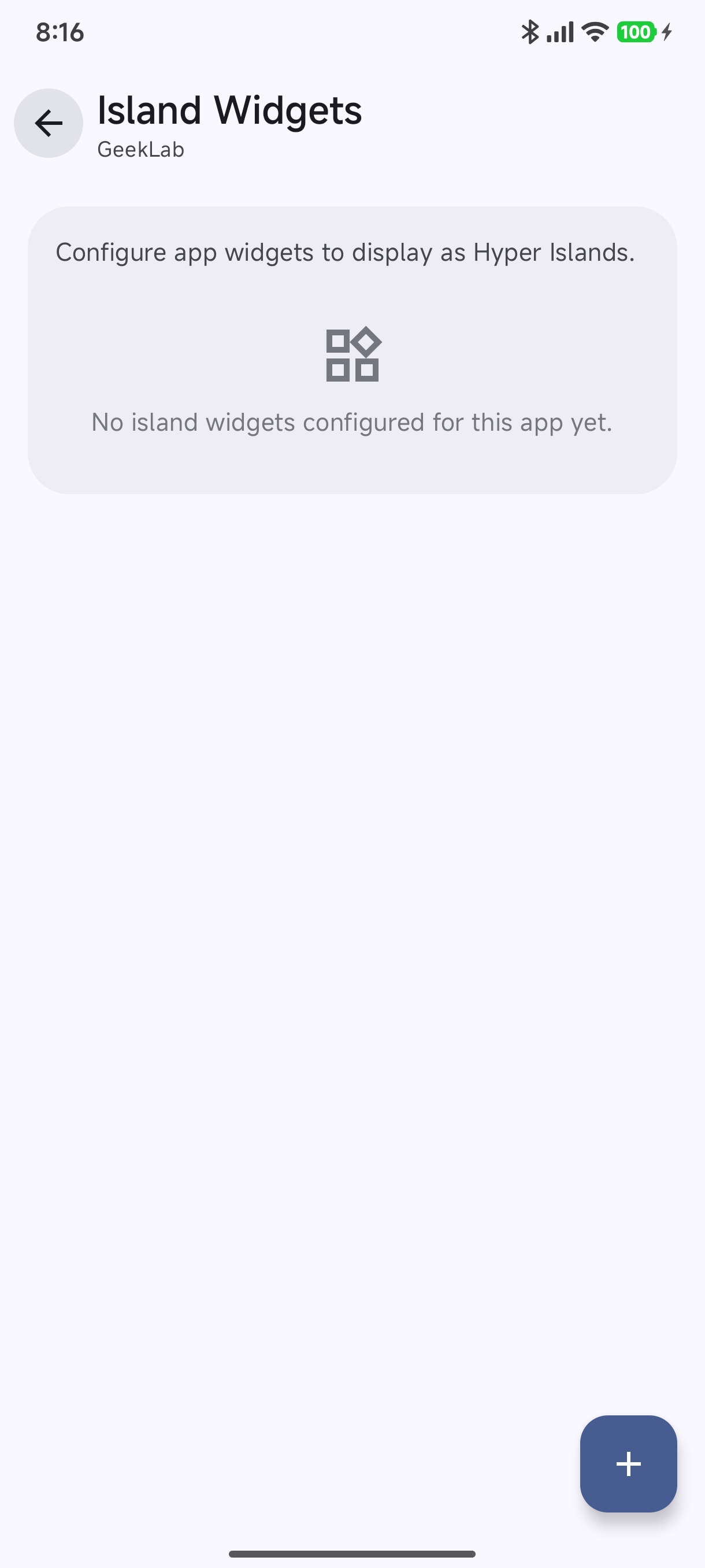
- Tap the floating + button to attach compatible app widgets directly to the island interface.
- Check the Android Widget Island Guide for complete setup instructions.
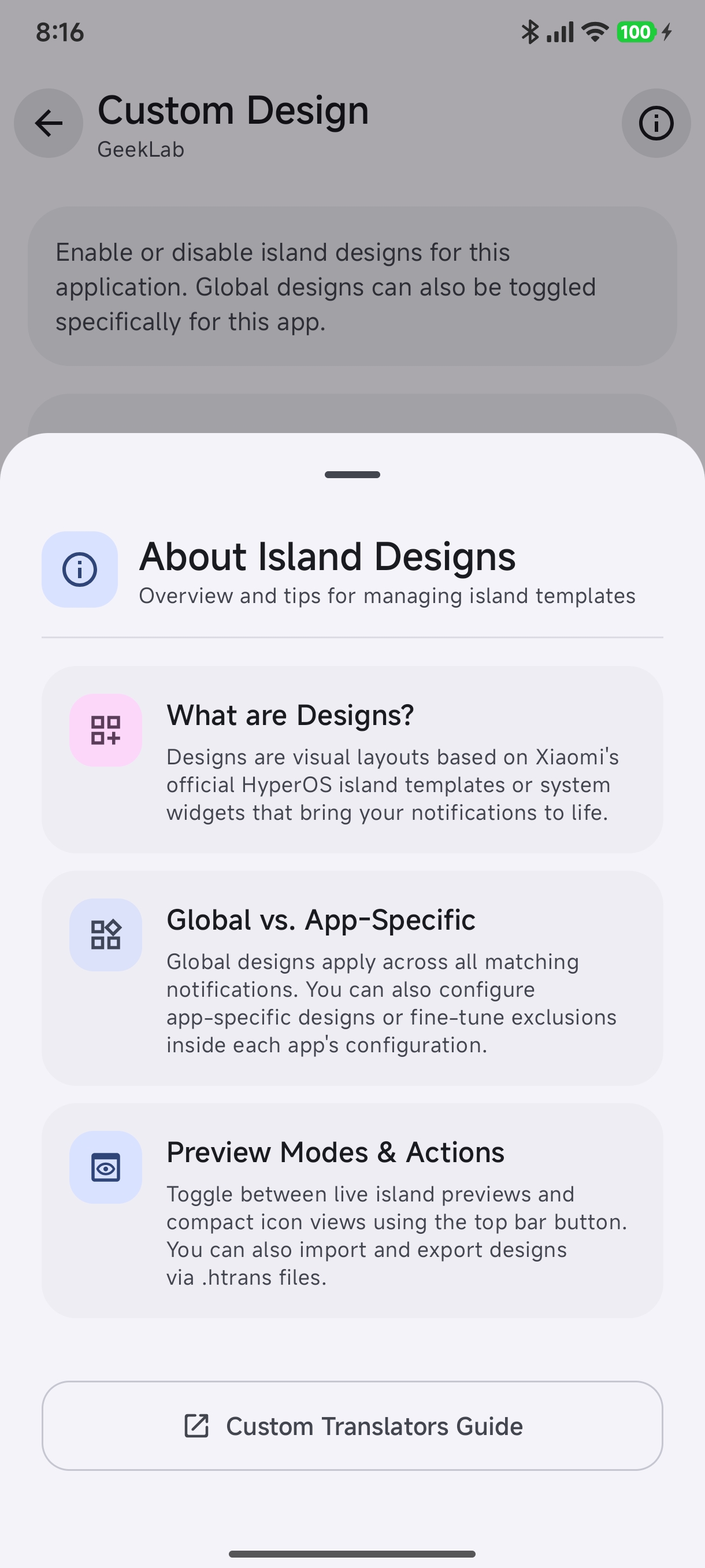
Custom Design & Templates#
Apply unique visual styles, layout bento cards, and themes to this application.
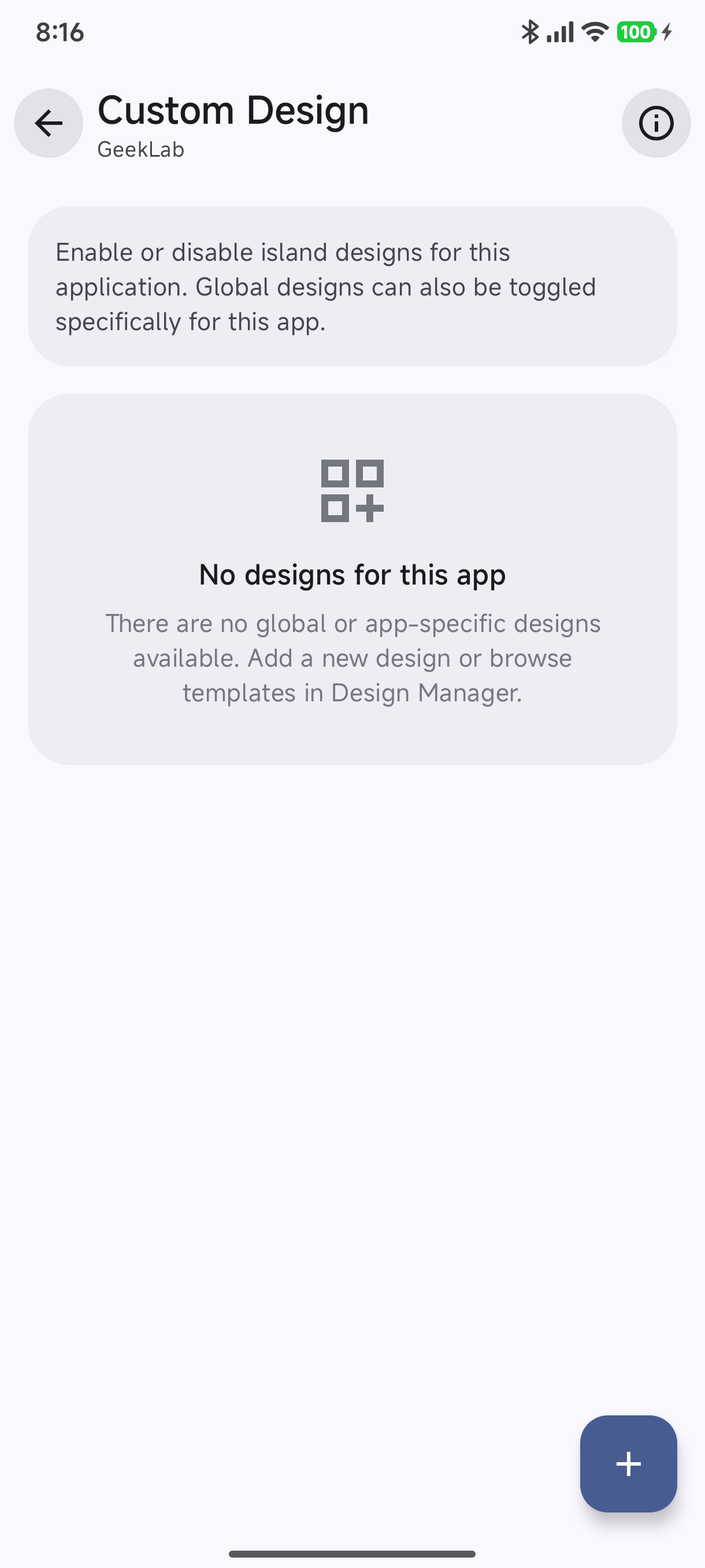
- Tap the info icon to learn how app-specific designs interact with global themes.
- Learn more in the Custom Designs Guide.
Custom Translators#
Assign custom parsing and display translators to handle complex notifications from this application.
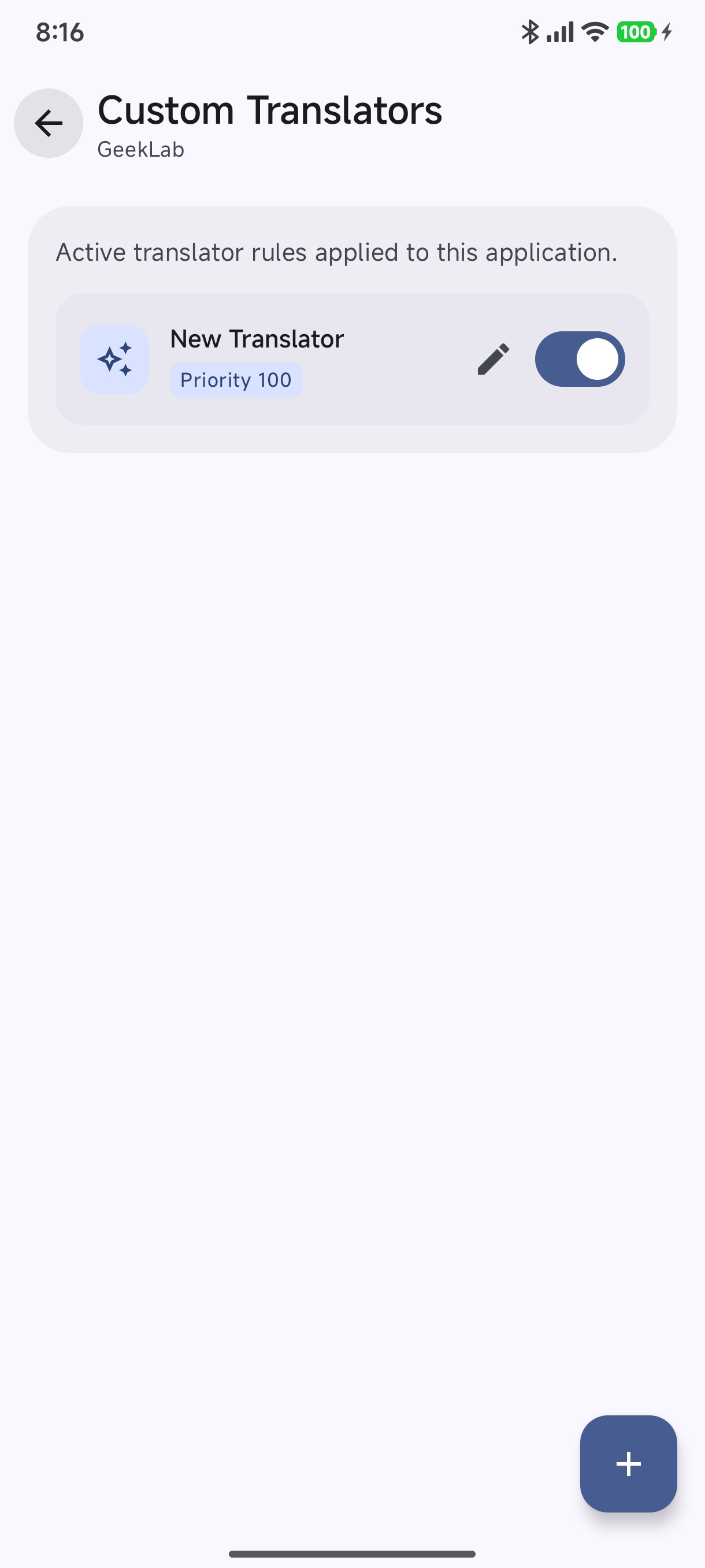
- Manage active translator rules applied specifically to this application.
- Tap + or edit existing translators to customize parsing formulas, regex captures, and action button layouts.
- Read the comprehensive Custom Translators Guide for visual editing options and regex recipes.