Hyper Bridge includes native system island adapters for essential HyperOS and Android platform services: Screen Recording, System Updates, and VPN connections. These system modules have specialized layouts, live timers, progress bars, and custom side display configurations.
You can access and configure each system app directly from the Active Apps list (under the System filter chip) by tapping the gear icon next to the corresponding service.
1. Screen Recording Island#
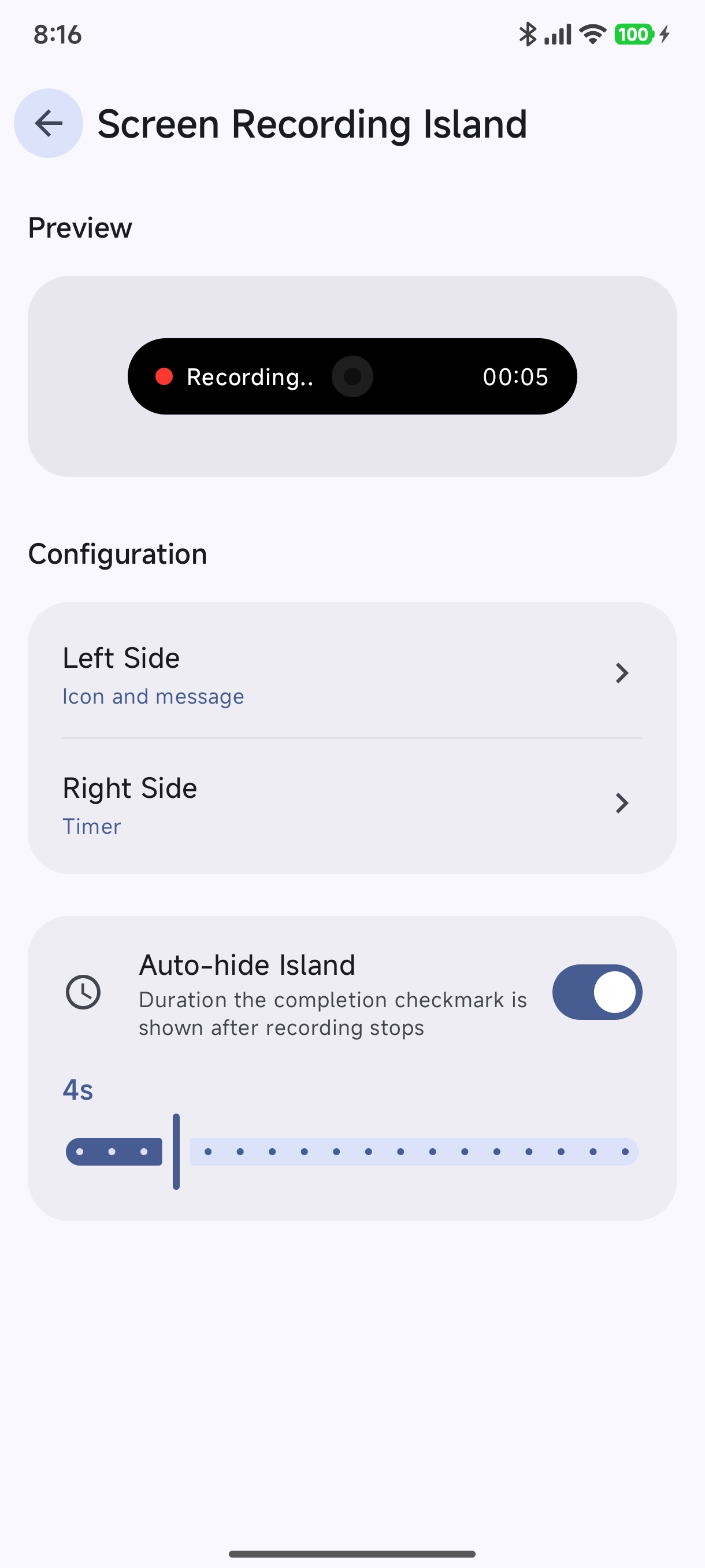
The Screen Recording island provides a sleek live status pill during active screen captures, showing a recording indicator, customizable message, and live elapsed timer.
Configuration Options#
- Preview: An interactive live preview of how the dynamic island looks while screen capture is active.
- Left Side: Determines what information is displayed on the left of the camera cutout.
- Right Side: Determines what appears on the right side of the camera cutout.
- Auto-hide Island: Controls whether the island auto-hides after recording completes.
- Completion Checkmark Duration: Adjust how long (e.g.
4s) the completion checkmark remains visible on screen once you stop recording before the island collapses.
- Completion Checkmark Duration: Adjust how long (e.g.
Customizing Left & Right Sides#
Tap on Left Side or Right Side to select the presentation style:
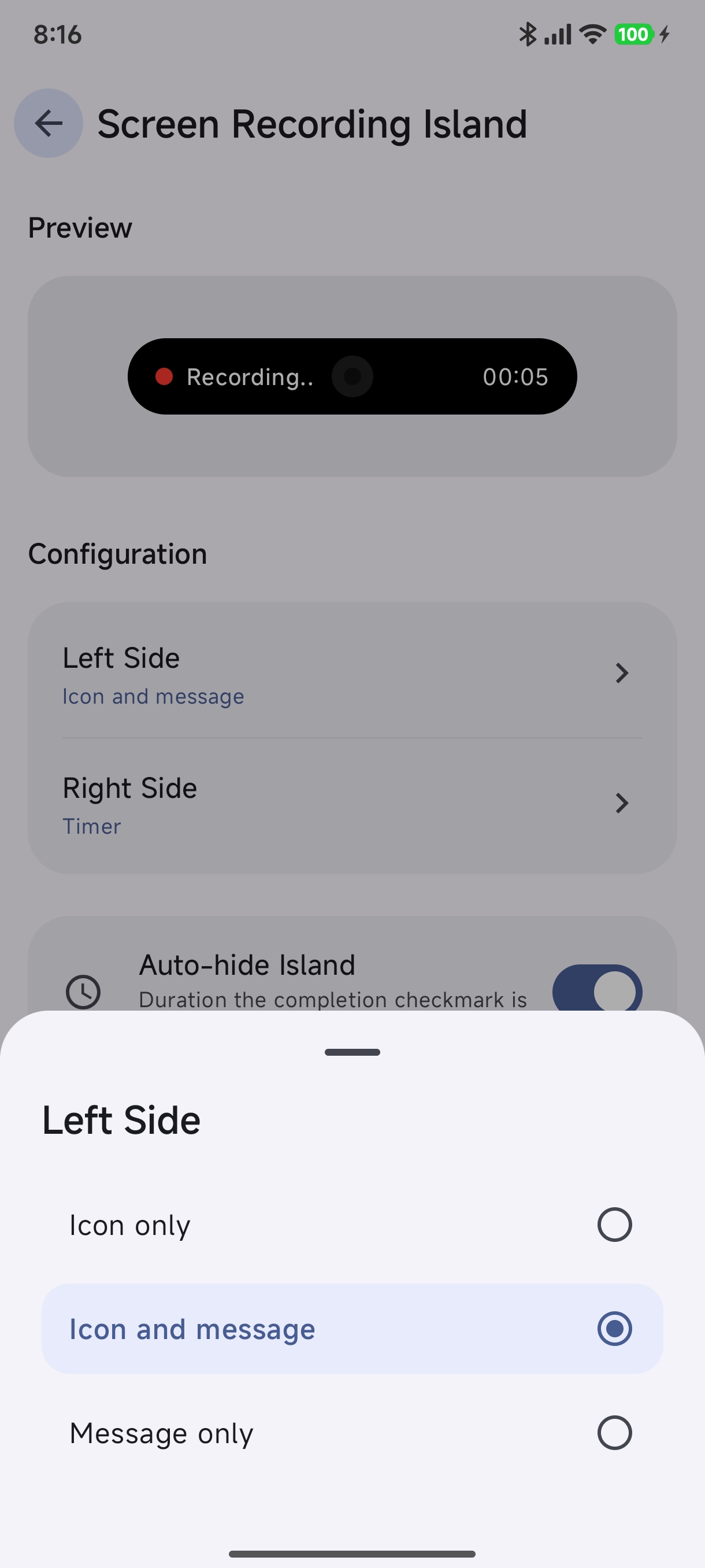
- Icon only: Displays only the red recording pulse dot/icon.
- Icon and message (Default): Displays both the icon and text indicator (
Recording...). - Message only: Shows only the text message.
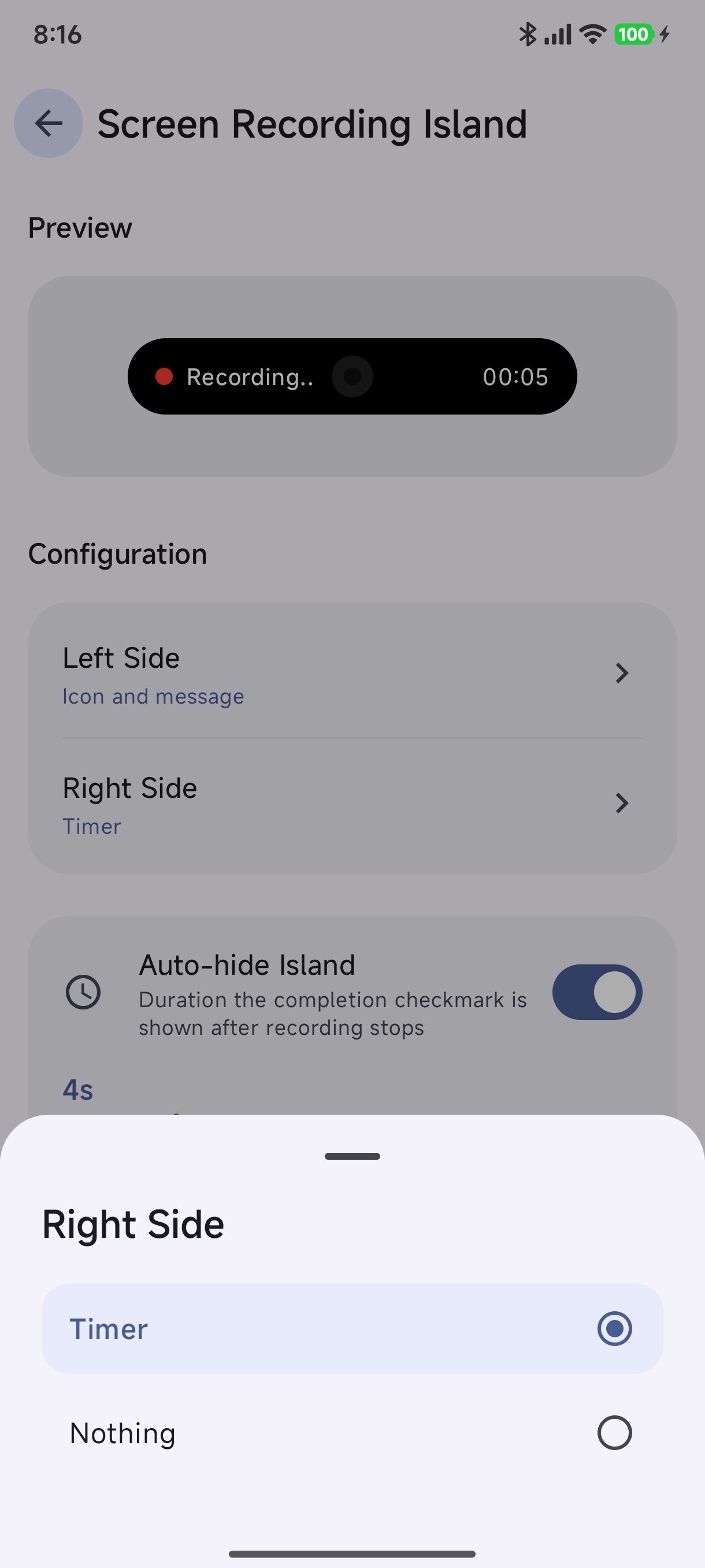
- Timer (Default): Shows an accurate live elapsed stopwatch timer (
MM:SS). - Nothing: Leaves the right side empty for a minimalist compact island.
2. System Update Island#
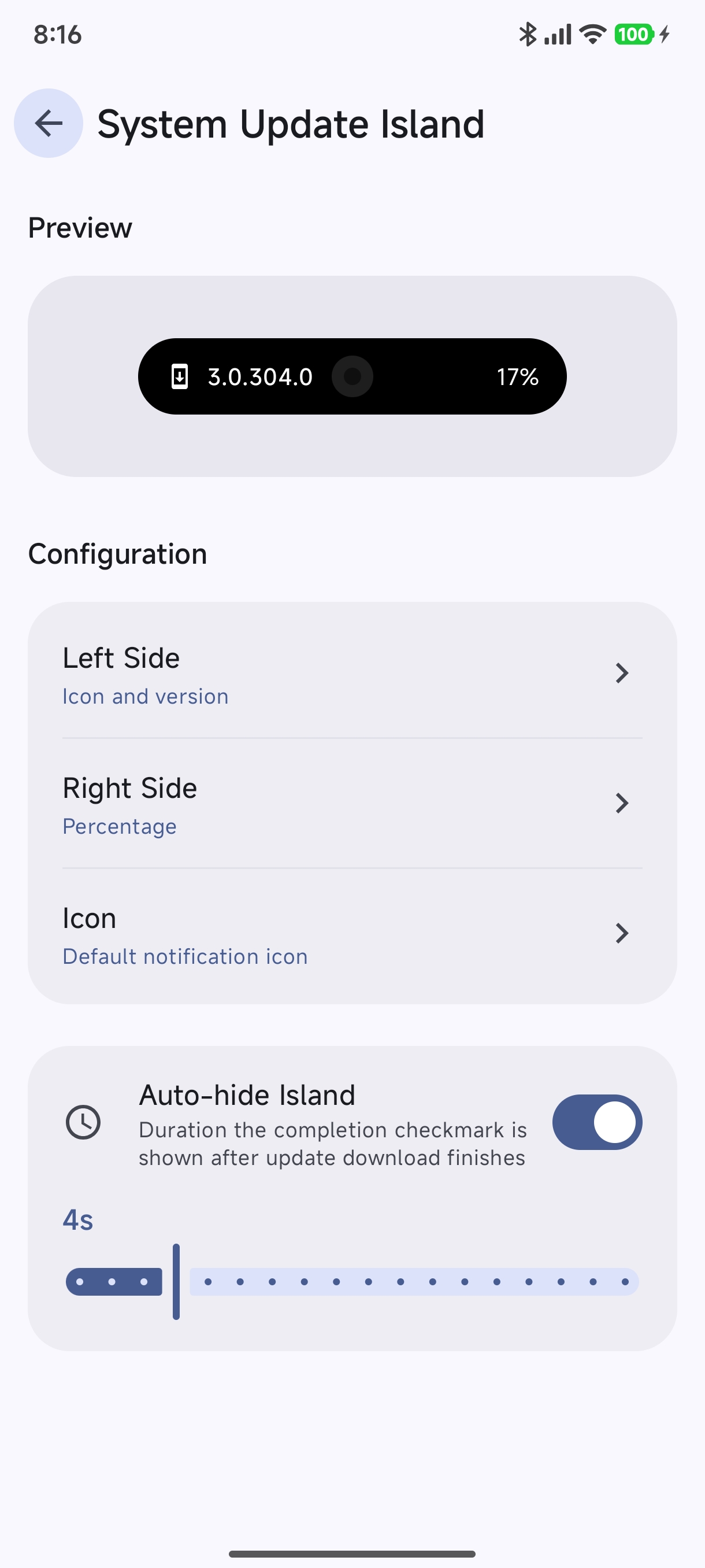
The System Update island surfaces download progress for HyperOS OTA updates and system packages, keeping you informed without taking over your notification shade.
Configuration Options#
- Preview: Shows the live OTA progress with package version and percentage download.
- Left Side: Configures the update icon and OS version label.
- Right Side: Configures the numeric percentage or circular progress indicator.
- Icon: Choose the icon source displayed in the island.
- Auto-hide Island:
- Completion Checkmark Duration: Set how long (e.g.
4s) the completion indicator stays visible after the update finishes downloading.
- Completion Checkmark Duration: Set how long (e.g.
Layout & Icon Customization#
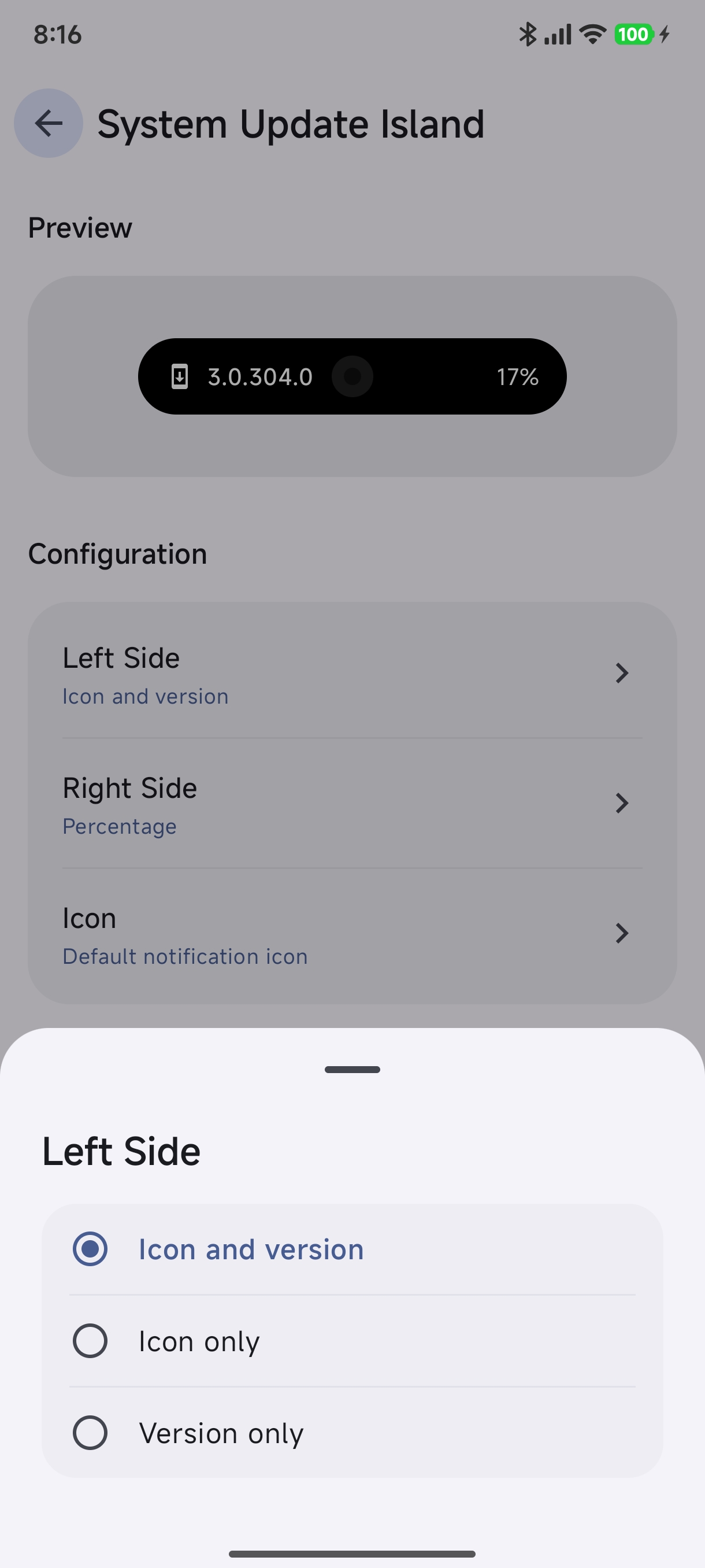
- Icon and version (Default): Displays the download arrow alongside the target OS version number (e.g.,
3.0.304.0). - Icon only: Displays only the update arrow icon.
- Version only: Displays the version string only.
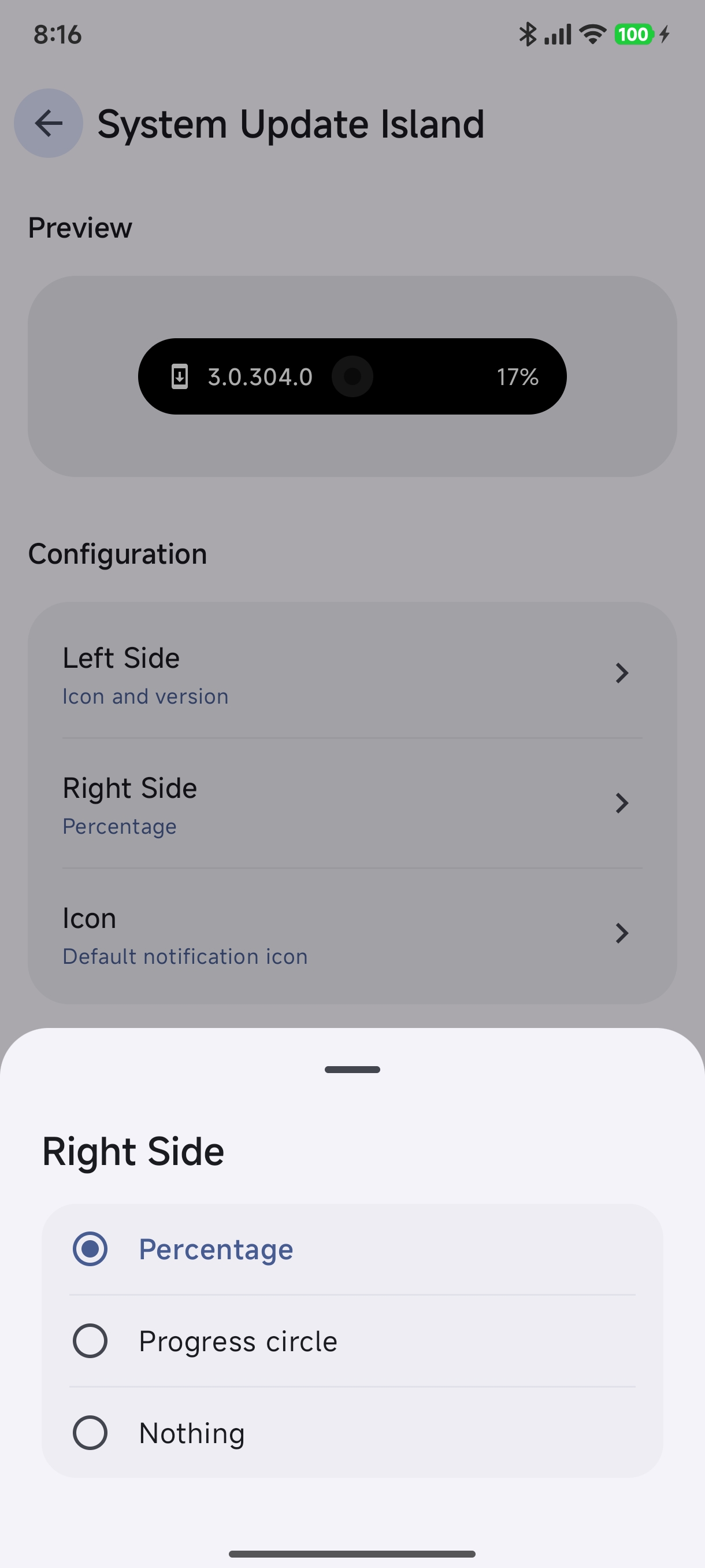
- Percentage (Default): Shows exact numeric progress (e.g.,
17%). - Progress circle: Renders a circular animated progress ring.
- Nothing: Keeps the right side blank for an ultra-compact pill.
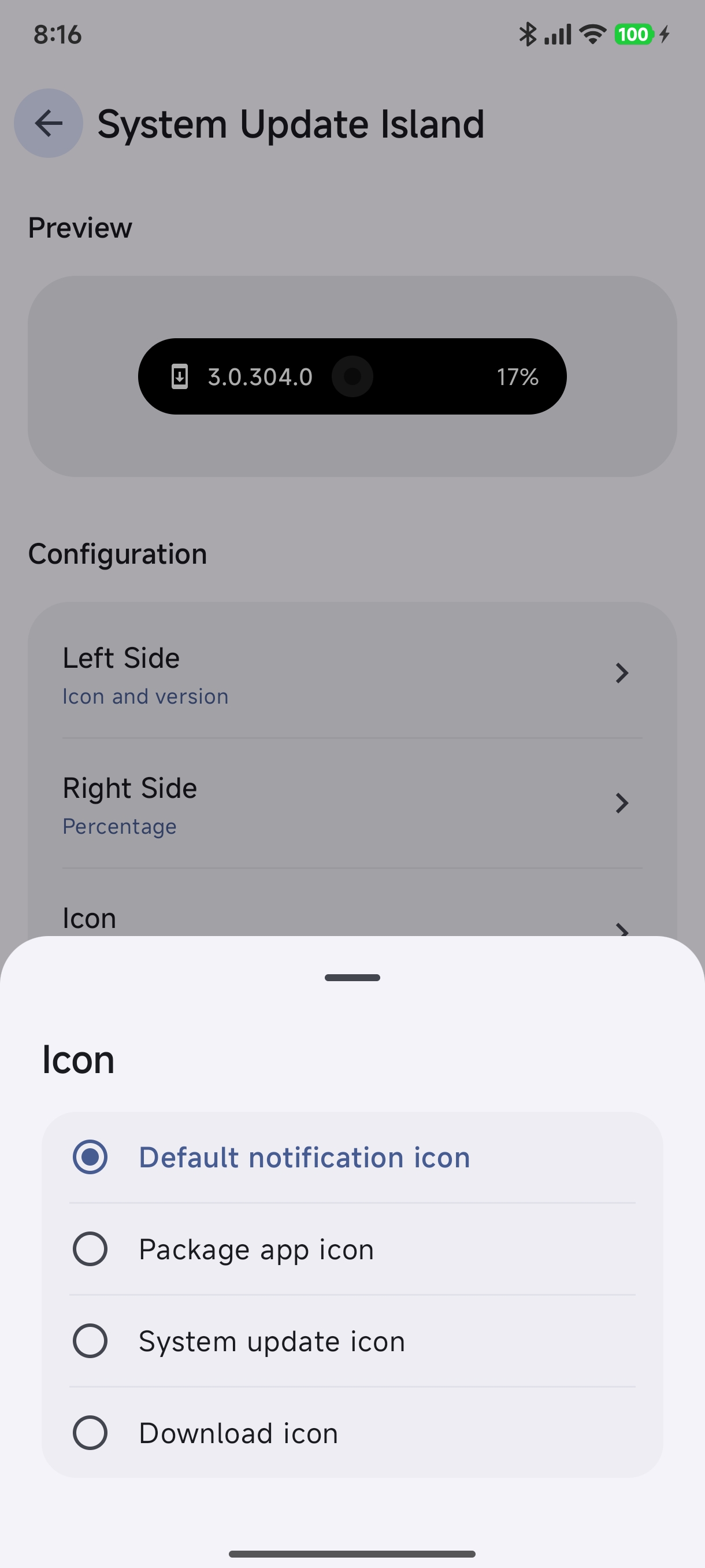
- Default notification icon: Uses the icon provided in the original notification.
- Package app icon: Pulls the official system updater app icon.
- System update icon: Uses the dedicated HyperOS system update glyph.
- Download icon: Uses a universal downward download arrow icon.
3. VPN Island & Global Settings#
In addition to Screen Recording and System Updates, HyperOS system services like VPN can be monitored dynamically:
- When a VPN connection starts or establishes a tunnel, the VPN island displays the active status icon and network status.
- You can manage whether system services auto-hide or remain pinned using Global Settings (
Settings>Global Settings).
Next Steps#
- Dynamic Island Engine: Learn how notifications and system events are mapped into HyperIslands.
- Design Hub & Custom Themes: Customize colors, shapes, and layouts across all your islands.