Hyper Bridge 0.6.0 features a native Android AppWidget Host, allowing you to place any standard Android home-screen widget (Spotify, Google Keep, Weather, Clock, Calendar, Smart Home toggles, etc.) directly into your Xiaomi HyperOS HyperIsland!
Instead of being confined to static notifications, widgets running inside HyperIsland can remain interactive, refresh automatically in the background, or appear when needed.
flowchart LR
    Picker["Widget Picker\n(App filter, Search, Favorites)"] --> Bind["AppWidget Host Bind\n(Android SAF / Widget Permissions)"]
    Bind --> Config["Widget Configuration\n(Size, Render Mode, Timeouts, Auto-Update)"]
    Config --> Island["Live HyperOS HyperIsland\n(Expanded Card & Shade Display)"]
1. How to Add a Widget#
You can add a widget in two different ways depending on your workflow:
Method A: From the Design Hub#
- Navigate to the Design tab in Hyper Bridge.
- Tap the
+(Add) Floating Action Button and select System Widget, or tap the+action button inside the Widgets Bento card. - The Widget Picker Screen will open, listing all applications on your device that provide home-screen widgets.
Method B: From App Settings#
- Go to Active Apps or Library and tap the app you want to configure (e.g., Spotify, Google Calendar).
- Scroll to the Island Widgets section.
- Tap Add Widget. The picker will automatically open pre-filtered to widgets provided exclusively by that application!
2. Browsing & Selecting Widgets (The Widget Picker)#
Access the widget catalog by tapping + (Add Widget) from the Saved Widgets screen or the Design Hub Bento Grid:
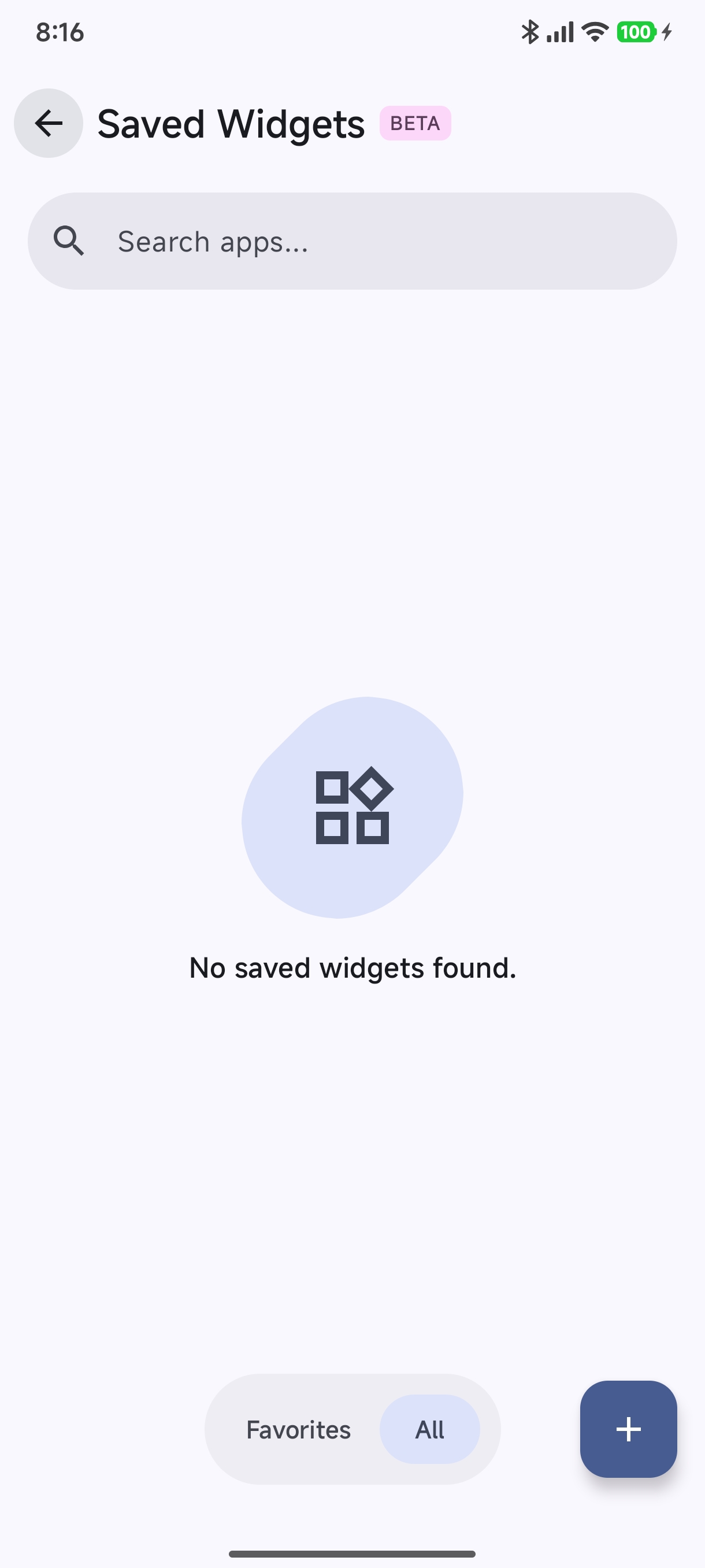
Tapping the + button opens the Widget Picker Screen:
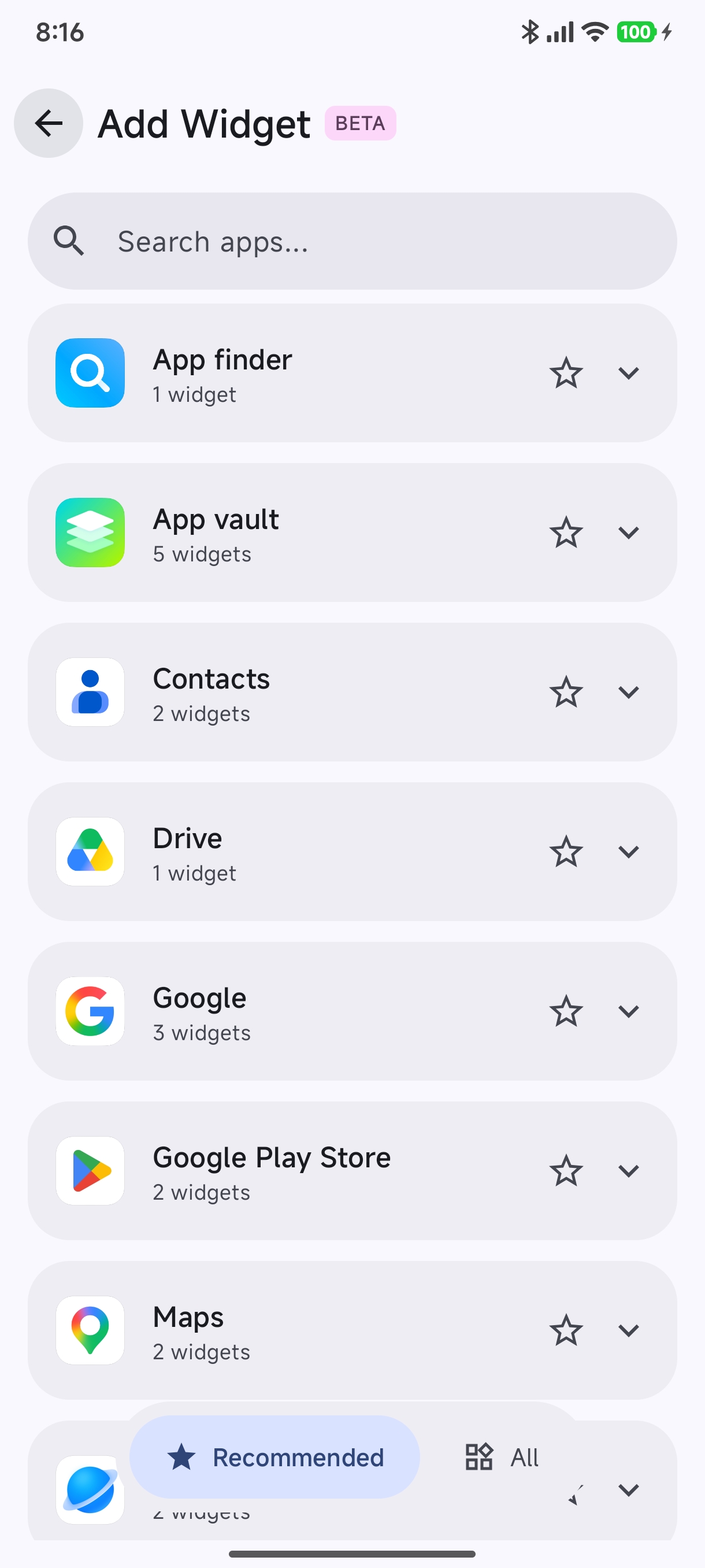
The picker provides:
- Instant Search: Type the name of any app or widget title in the top search bar.
- Favorites & Recommendations: Star widget providers to keep them at the top of your list.
- Collapsible App Groups: Tap any application card (e.g. YouTube Music, Spotify) to expand all available widget sizes and interactive previews:
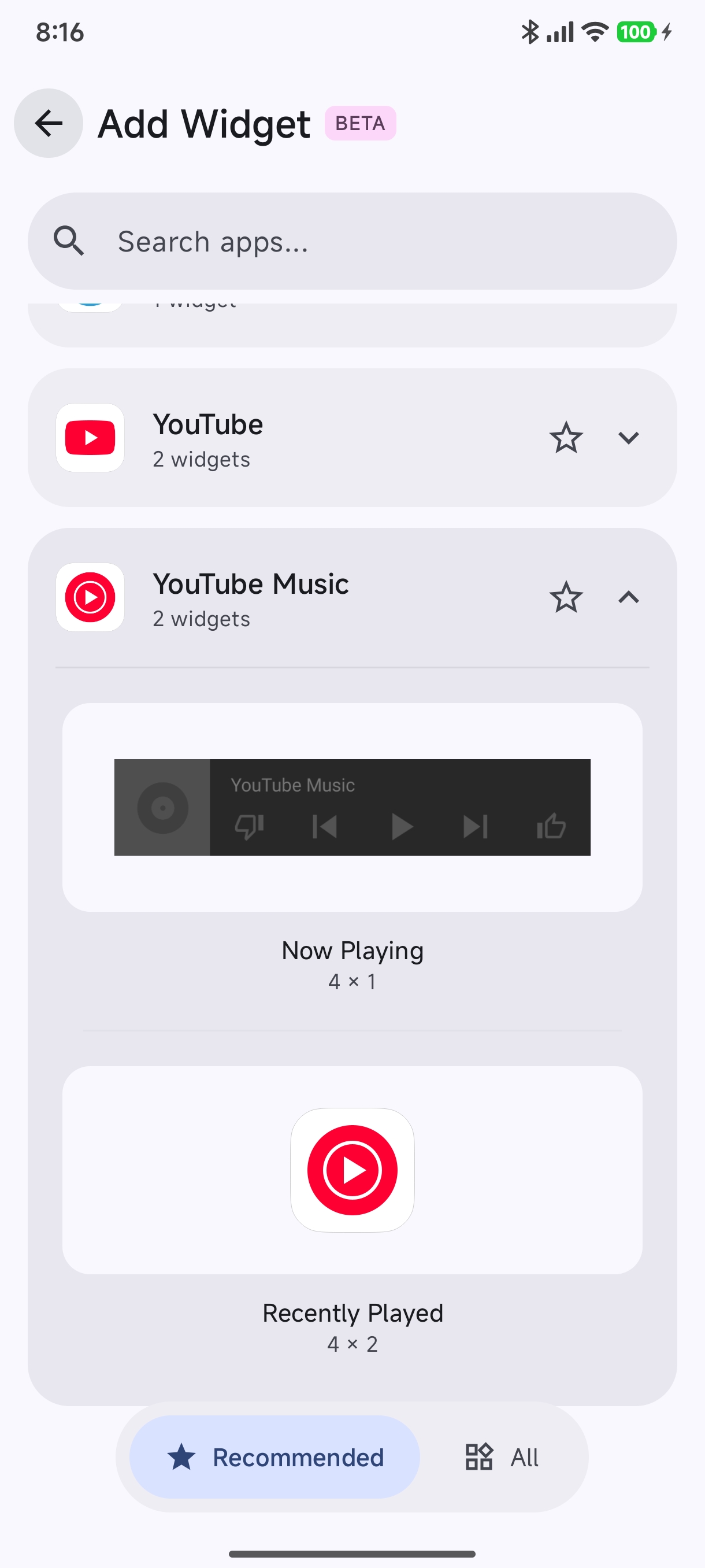
Android Widget Binding Permission:
The first time you select a widget from an application, Android will prompt you with a system dialog: “Allow Hyper Bridge to create widgets and access their data?” Tap Always allow or Create to grant the AppWidget Host permission.
3. Configuring Your Widget (WidgetConfigScreen)#
Once you pick a widget, you will enter the Widget Configuration Screen. Here you can preview how the widget renders in real time and customize its visual size and runtime behavior.
┌──────────────────────────────────────────────────────────┐
│              Live HyperIsland Widget Preview            │
│  [ Spotify Player: Playing Song - Album Art - Controls ]  │
└──────────────────────────────────────────────────────────┘
 [ Appearance Tab ]                     [ Behavior Tab ]
 • Size (Small / Medium / Large / etc.) • Show in Notification Shade
 • Render Mode (Interactive / Bitmap)   • Auto-Hide Timeout (TTL)
                                        • Auto-Update Interval
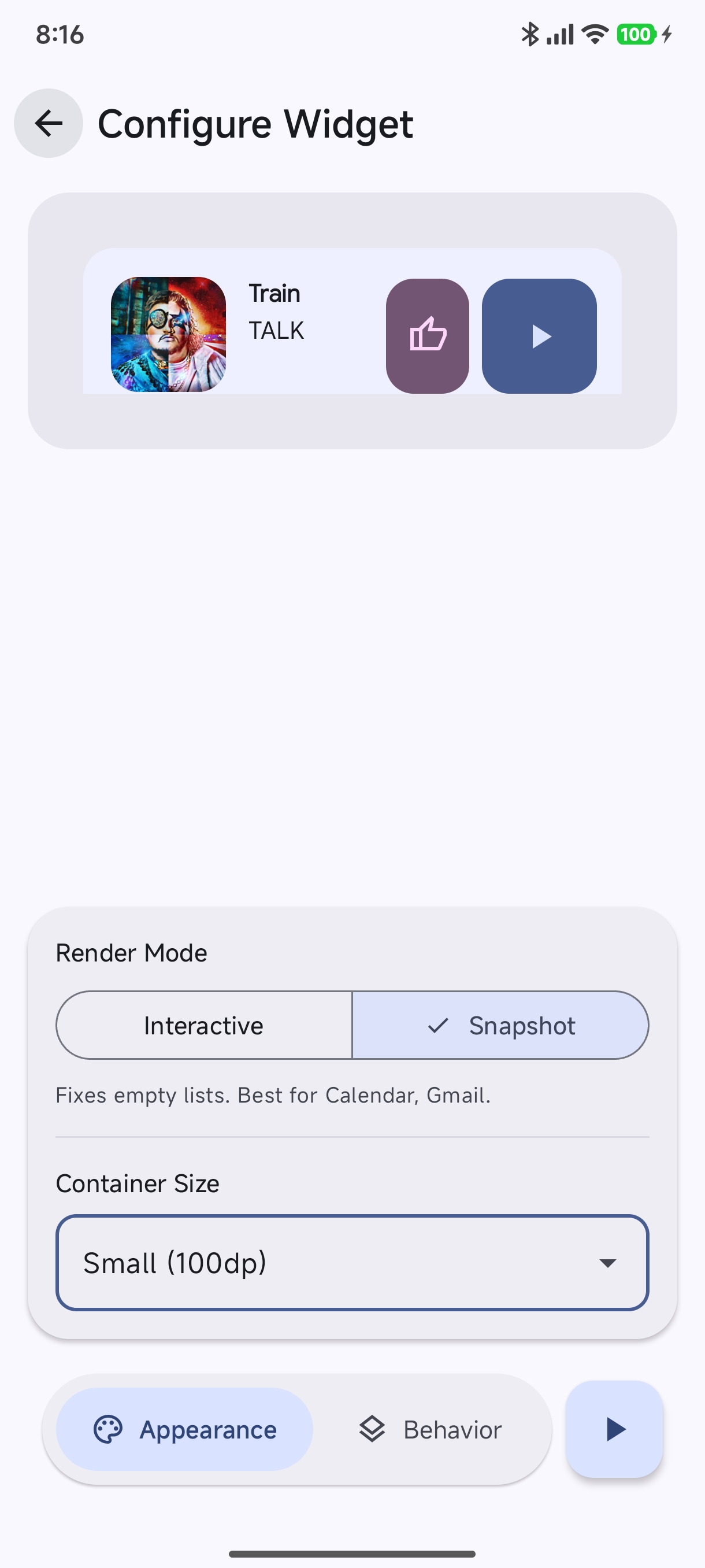
The configuration screen is split into two primary tabs:
Tab 1: Appearance#
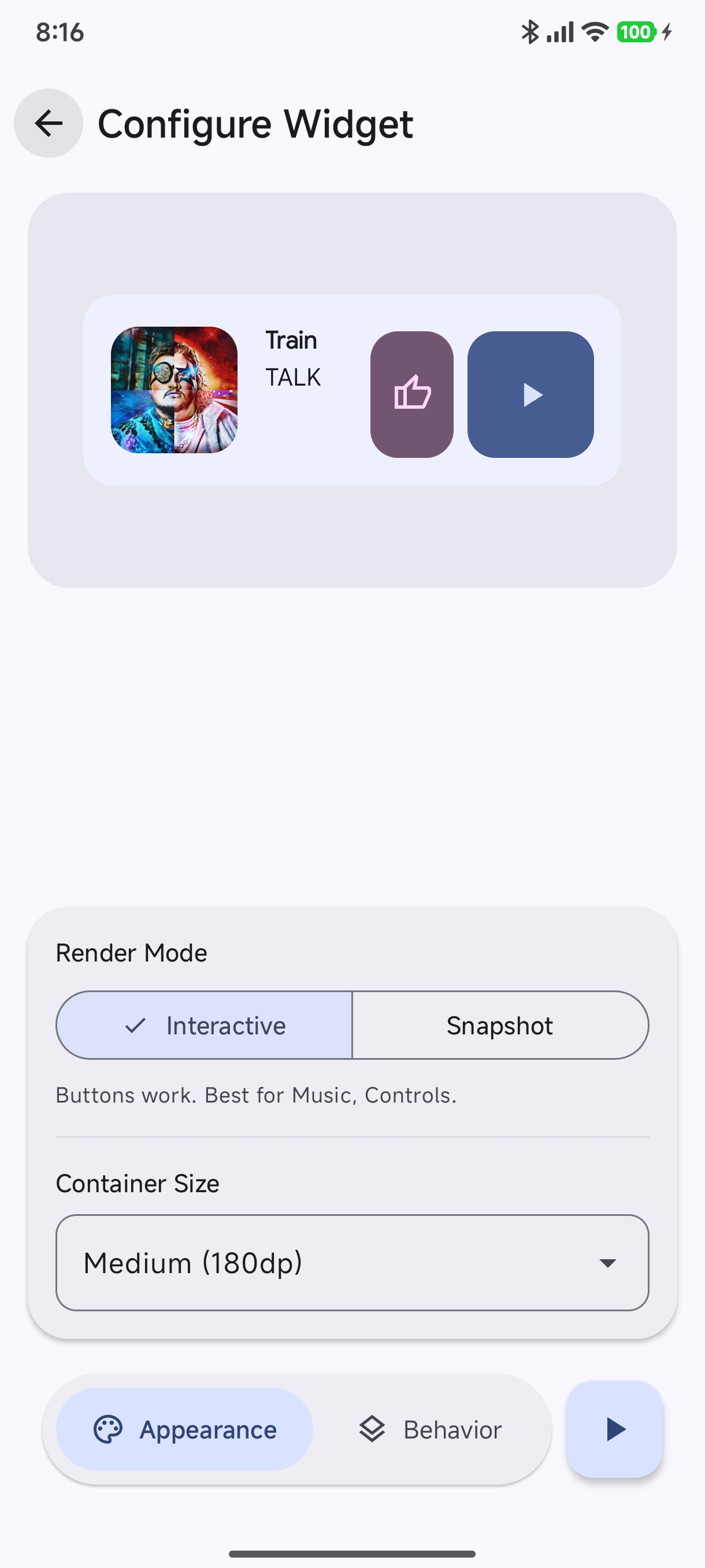
| Setting | Options | Description |
|---|---|---|
| Render Mode | Interactive, Snapshot | Interactive: Allows tapping widget buttons, play/pause controls, and action triggers directly on the island. Snapshot: Captures a crisp image snapshot of the widget. Recommended for complex list views (like Calendar or Gmail) that may fail to bind interactive remote views in floating windows. |
| Container Size | Small (100dp), Medium (180dp), Large, Original | Controls the target container height on the island card. |
Tab 2: Behavior#
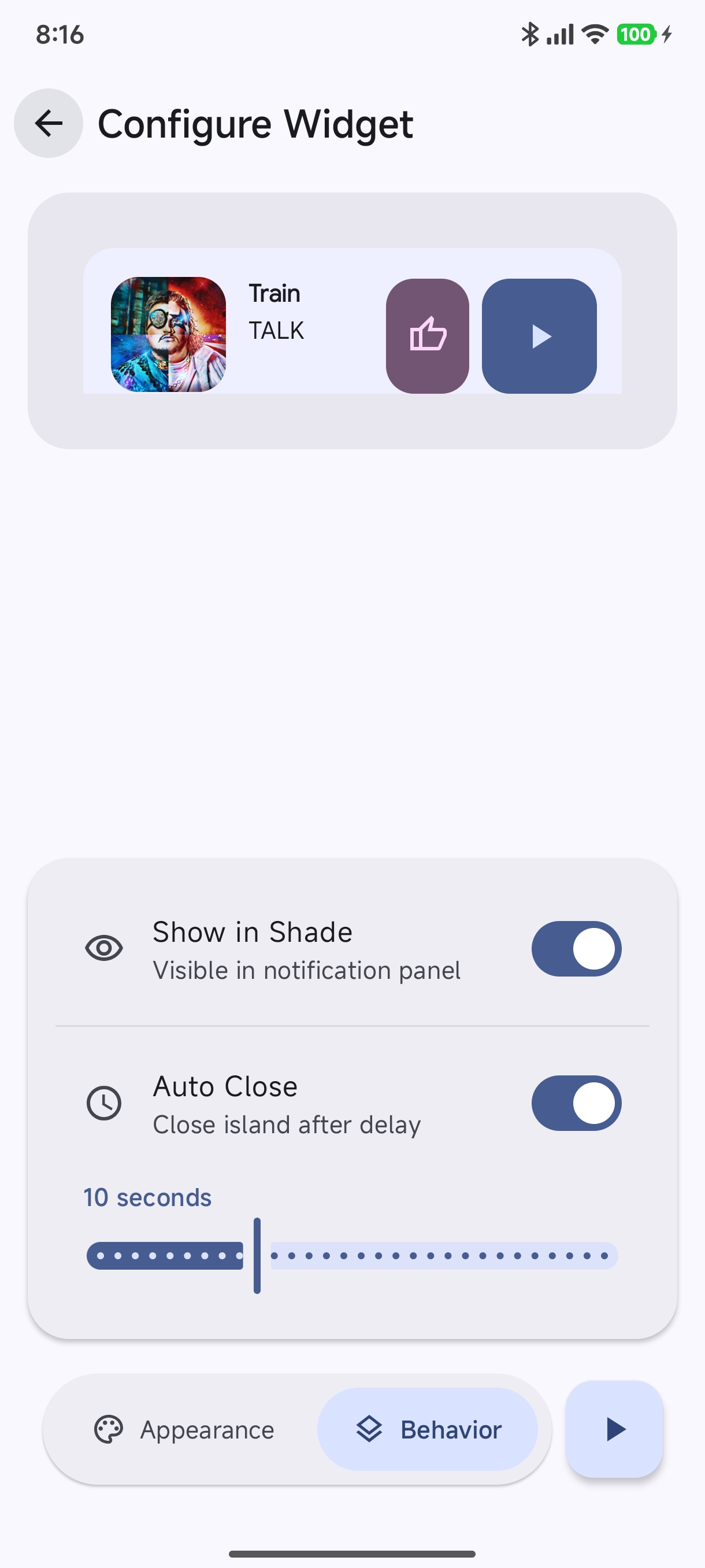
Switch to the Behavior tab to manage how and when the widget appears:
| Setting | Default | Description |
|---|---|---|
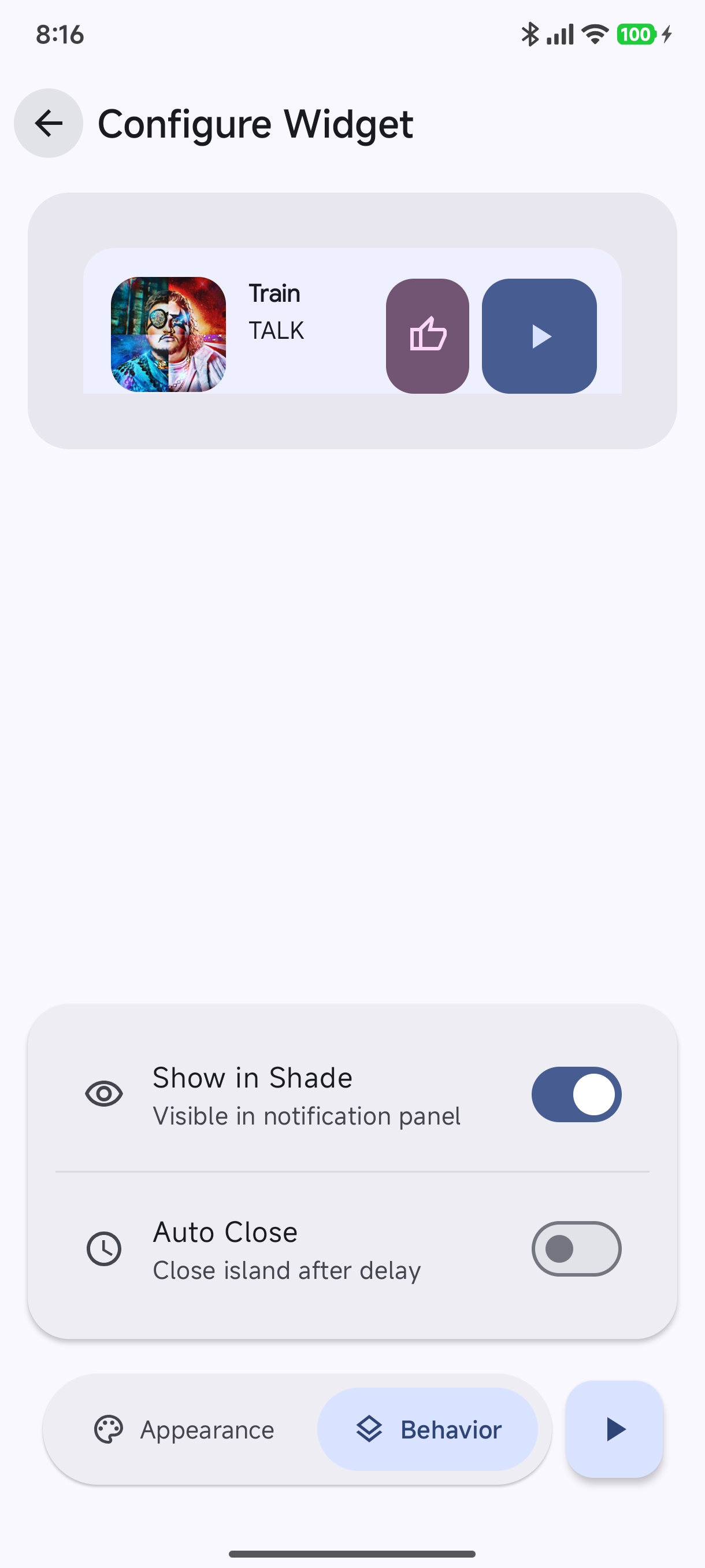
| Show in Shade | Enabled (true) | When enabled, keeps the widget accessible in the standard Android notification pull-down shade in addition to the floating HyperIsland. |
| Auto Close | Disabled / Enabled | When turned on, you can configure an idle slider (e.g., 5 to 60 seconds). The island card will automatically dismiss after the duration expires. |
4. Managing Your Saved Widgets (SavedAppWidgetsScreen)#
After configuring your widget, tap Save (or the Play button) to store it in your widget library:
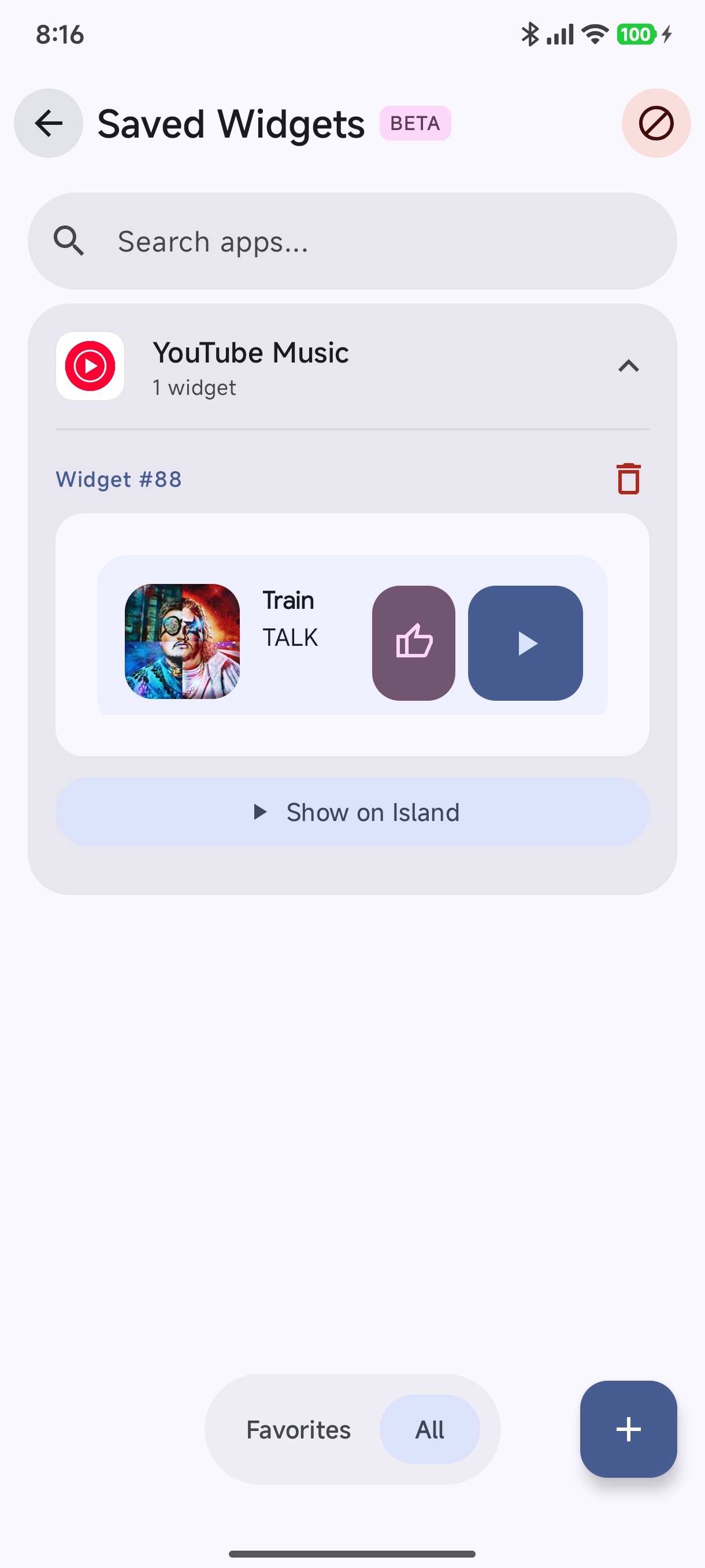
In the Saved Widgets list:
- Live Preview Container: Shows the live interactive widget rendering in its assigned size.
- Show on Island: Tap to immediately spawn the widget on your device’s HyperIsland to test how it looks and behaves!
- Delete (
Trash): Remove the widget from the island host.
5. Live Island Experience on Home Screen#
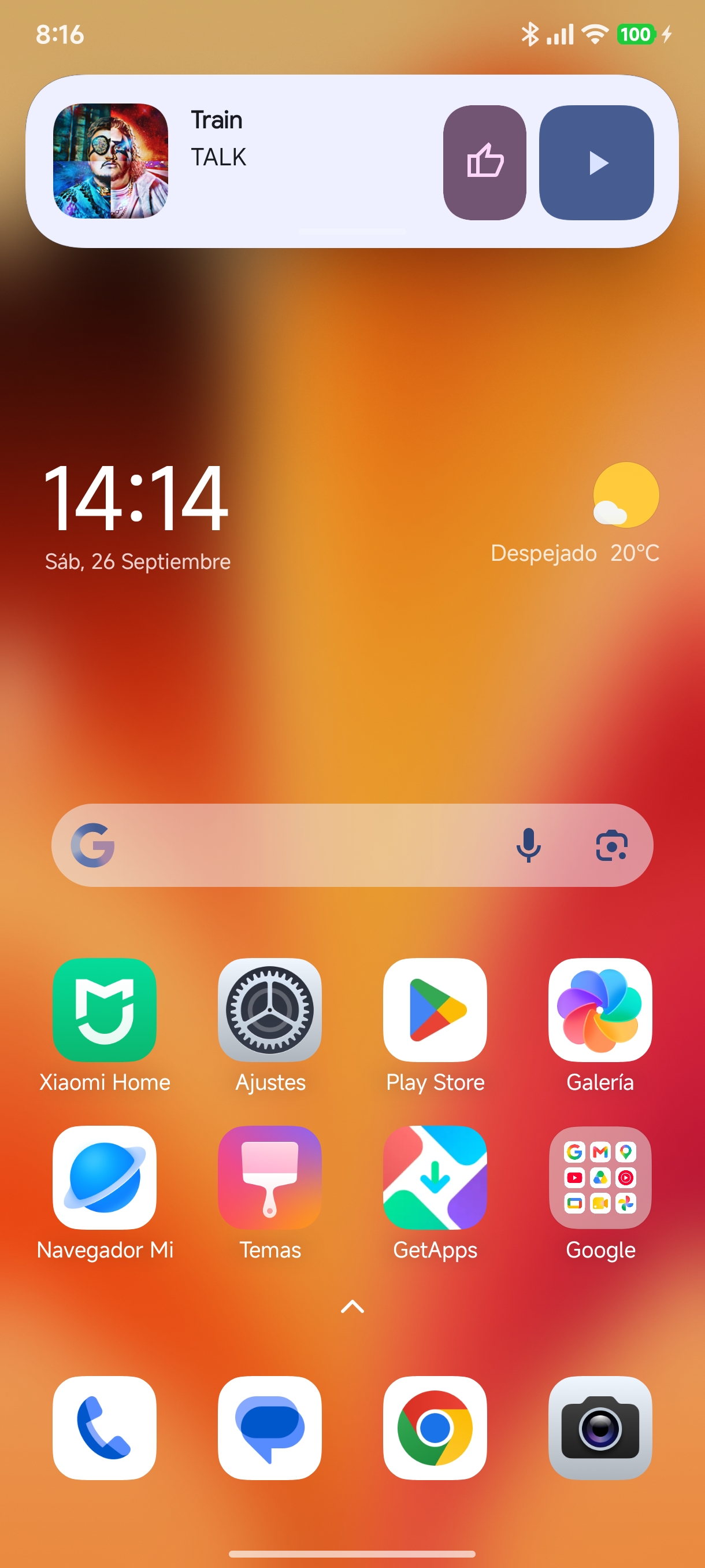
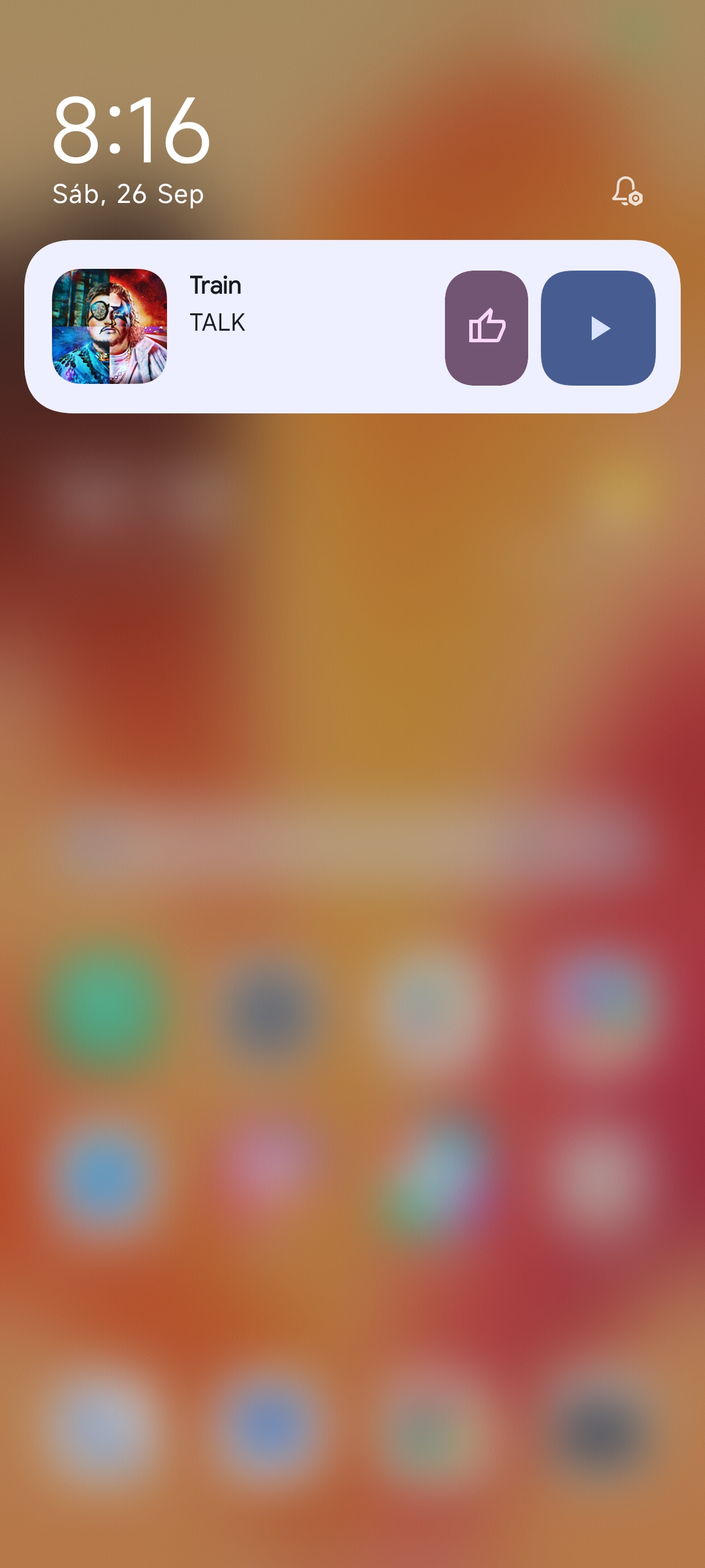
When triggered, the widget renders seamlessly at the top of your screen as a native Xiaomi HyperOS HyperIsland card:
Tips & Best Practices#
- Interactive Media Widgets: If your music player does not output standard Android media notifications, mounting its official 4x1 or 4x2 widget inside Hyper Bridge gives you 100% reliable island playback controls!
- Battery & Performance: For widgets that don’t need real-time second counters, leave Auto-Update at 15–30 minutes or rely on the host application’s native widget broadcast to maximize battery life.
- Combined with Translators: You can assign specific widgets to trigger alongside custom notification translators or view them on-demand.