The Design Hub (DesignScreen) in Hyper Bridge 0.6.0 is your creative control center. Located in the bottom navigation bar alongside Active Apps and Library, the Design screen brings together all personalization aspects of your Xiaomi HyperOS HyperIsland experience in a unified Material 3 Expressive interface.
flowchart TD
    Hub["Design Hub (Design Screen)"] --> Hero["Hero Showcase & Quick Docs"]
    Hub --> Bento["Design Variant Bento Grid"]

    Bento --> ThemesCard["🎨 Themes & Styles\nActive theme, custom colors, masks"]
    Bento --> WidgetsCard["🧩 System Widgets\nAppWidget host, size, timeouts"]
    Bento --> DesignsCard["📐 Custom Designs\n10 Official Xiaomi Island Templates"]
    Bento --> TranslatorsCard["⚡ Smart Translators\nRule engine, regex, actions"]

    Hub --> FAB["➕ Expressive Action Sheet (FAB)"]
    FAB --> OptDesign["Add Custom Design"]
    FAB --> OptWidget["Add System Widget"]
    FAB --> OptTheme["Create Theme"]
    FAB --> OptTranslator["Create Smart Translator"]
1. Navigating the Design Hub#
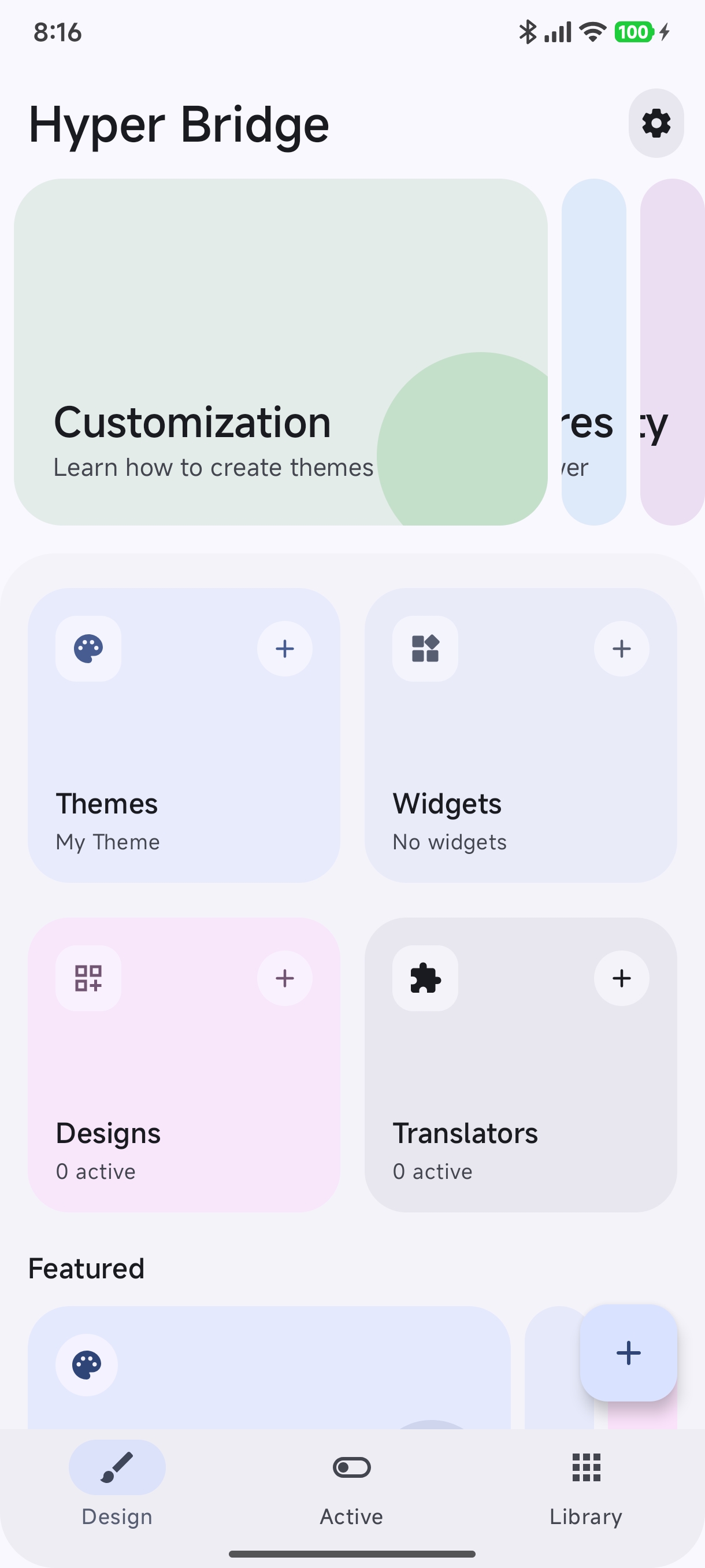
When you switch to the Design tab, the screen is organized into clear visual zones:
Top App Bar & Quick Settings#
- App Title: Displays the current workspace status.
- Settings Shortcut: A top-right quick-action button provides instant access to Global Settings, island timeouts, diagnostics, and system setup guides.
Hero Showcase Carousel#
At the very top, a responsive hero carousel highlights key personalization features with interactive links:
- Customization Guide: Quick access to official styling documentation.
- Theme Creator Pro: Direct walkthrough for building and distributing
.hbrand.hthemepackages. - Community Discussions: Connect directly with fellow creators on GitHub Discussions to share ideas, templates, and icons.
2. The Bento Grid: What Each Section Does#
Directly below the hero carousel sits the Design Variant Bento Grid — four distinct modular cards that display real-time status and provide one-tap access to your customization libraries.
| Bento Card | Active Status Displayed | Card Tap Action | Action Button Tap |
|---|---|---|---|
| 🎨 Themes & Styles | Displays active theme name (or “Default”) | Opens Theme Manager | Launches In-App Theme Creator (+) |
| 🧩 System Widgets | Displays number of saved widgets | Opens Saved App Widgets list | Opens Widget Picker Sheet (+) |
| 📐 Custom Designs | Shows active template design count | Opens Design Manager gallery | Opens Add Design Flow modal |
| ⚡ Translators | Shows active custom translator count | Opens Translator Manager | Launches Translator Visual Editor |
3. The Central FAB (+ Add Action Sheet)#
Tapping the prominent Floating Action Button (+) in the bottom-right corner reveals an expressive Material 3 modal sheet with four core creation pathways:
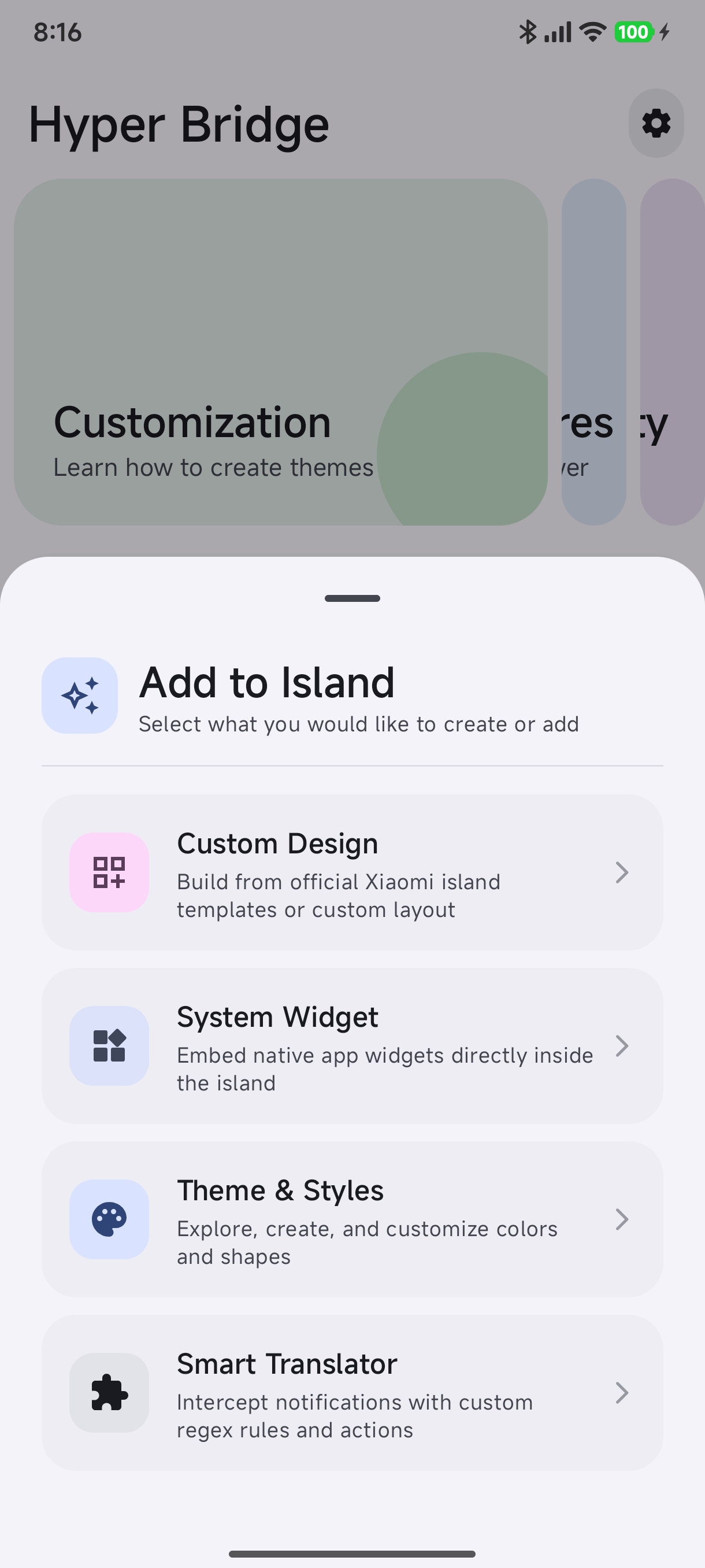
- Custom Design: Choose from official Xiaomi HyperIsland layout presets (delivery waypoints, payment cards, timers, boarding passes) and bind them to your notification channels.
- System Widget: Browse all Android widgets installed on your device (Spotify, weather, calendar, clock) and mount them directly inside your HyperOS HyperIsland.
- Theme & Styles: Create a new visual style, adjusting primary accents, call button designs, icon padding, and geometric shapes.
- Smart Translator: Launch the comprehensive declarative rule builder to intercept, reformat, and enhance notifications with regex, custom actions, and smart buttons.
4. Featured & Community Section#
Below the Bento Grid, the Design Hub showcases:
- Active Designs Carousel: Scroll through your enabled template cards and preview how they appear in expanded and compact status bar states.
- Installed Themes: Quickly switch between installed
.htheme/.hbrtheme packs with a single tap. - Guides & Video Tutorials: In-app links to help documentation, permission guides, and the troubleshooting diagnostics console.
Next Steps#
- Learn how to use the built-in In-App Theme Creator.
- Explore Island Templates & Designs to see all 10 official Xiaomi presets.
- Add your favorite Android home-screen widgets to the island with the System Widgets Guide.
- Build advanced regex rules and action slots with the Custom Translators Guide.